The Client 360 profile
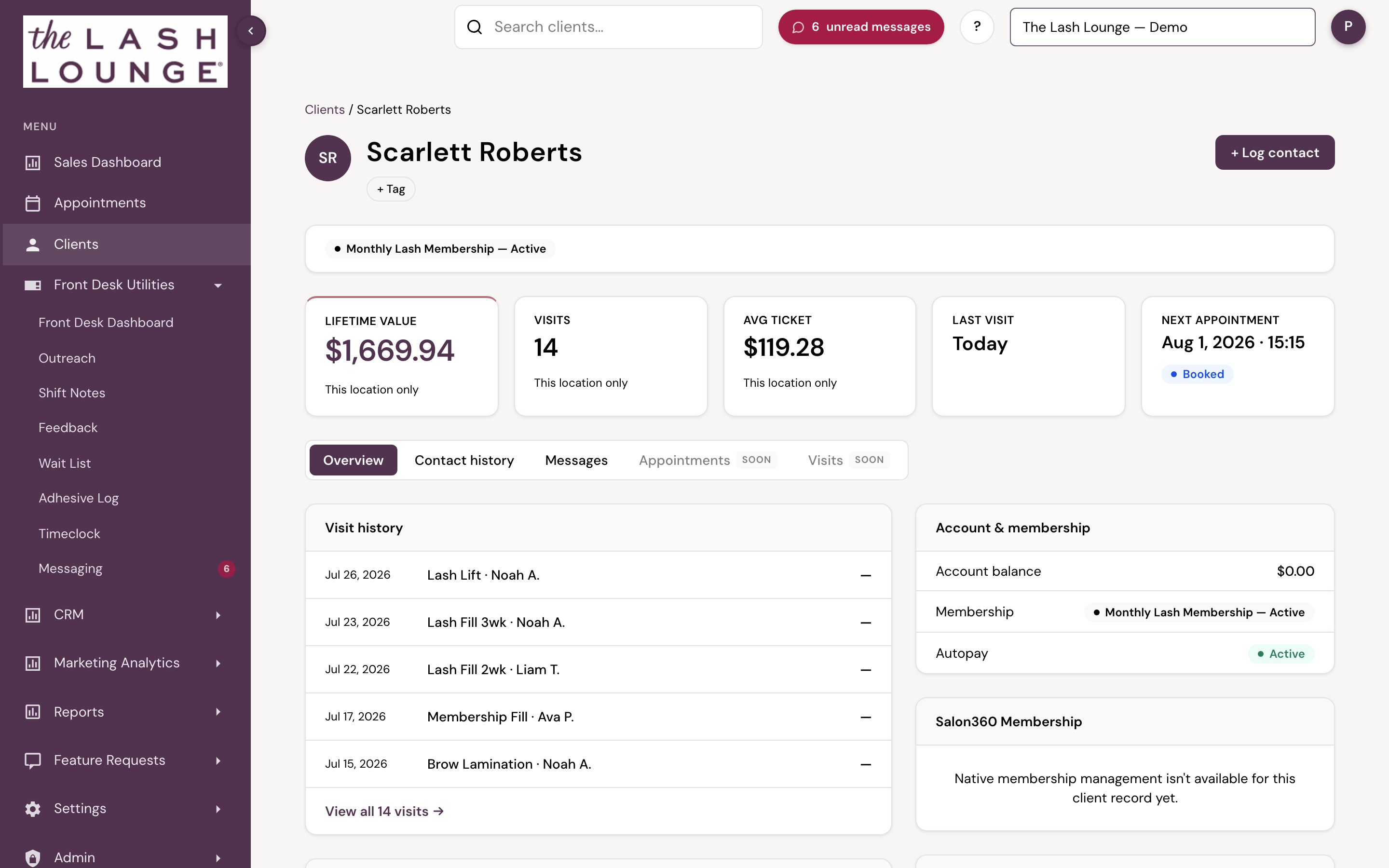
Opening a client from the directory lands you on their Client 360 profile — a single page that brings together everything the salon knows about that guest, so the history follows them across visits and staff.
 1234
The header at a glance
Across the top: lifetime value (what the client has actually paid for services, the same figure as the Spend column on the Lash Lounge's Lifetime Value of Member report — real money paid, before sales tax, with retail, tips and card convenience fees excluded), visits, avg ticket (lifetime value divided by visits), last visit, and next appointment, with the client's membership status and how they were originally acquired shown just above in an identity strip (for example, Member since Mar 2024 and Monthly Lash Membership — Active). Ten seconds on this strip tells you whether you're looking at a brand-new guest or a long-time regular.
A + Log contact button sits in the header (staff with Front Desk access) — it opens the same Log Contact dialog used from Call to Rebook, for recording a call, text, email, or in-person touch that isn't tied to any other workflow.

Tabs — Overview & Contact history
A tab nav under the header switches what's shown below: Overview, Contact history, and two Soon placeholders — Appointments and Visits — reserved for upcoming tabs on the same nav.
Overview
The default tab — a card grid with everything else on the profile:
- Visit history — recent visits with the service performed and the stylist who performed it.
- Account & membership — account balance, membership status, contract renewal, and autopay standing.
- Tags — quick labels anyone can see at a glance (e.g. VIP, Prefers quiet service). Use them for context that should be visible before the guest is in the chair.
- Notes & Formulas — freeform notes and recorded formulas/preferences per client, so a guest's formula doesn't live in one stylist's memory.
- Patch Tests — logged with a pass / fail / pending result and who administered them, for color-safety tracking.
- Consultation — the salon's consultation form, filled out right on the profile; each submission is saved to the client's consultation history.
- Photos — a per-client gallery of before, after, and consultation photos.
- Where this client came from — for clients who started as a lead: their acquisition details and pre-first-visit history.
Contact history
The unified log of every touchpoint anyone on the team has recorded with this guest — Call to Rebook attempts, Declined Autopays outreach, and general notes logged from this profile's header. Three summary tiles lead the tab: Last contact, Attempts · last 30 days, and Last outcome. Below them, a filterable timeline (All / Calls / Texts / Emails / Notes) lists each entry with its channel, outcome, who logged it, when, and the note.


Log Contact
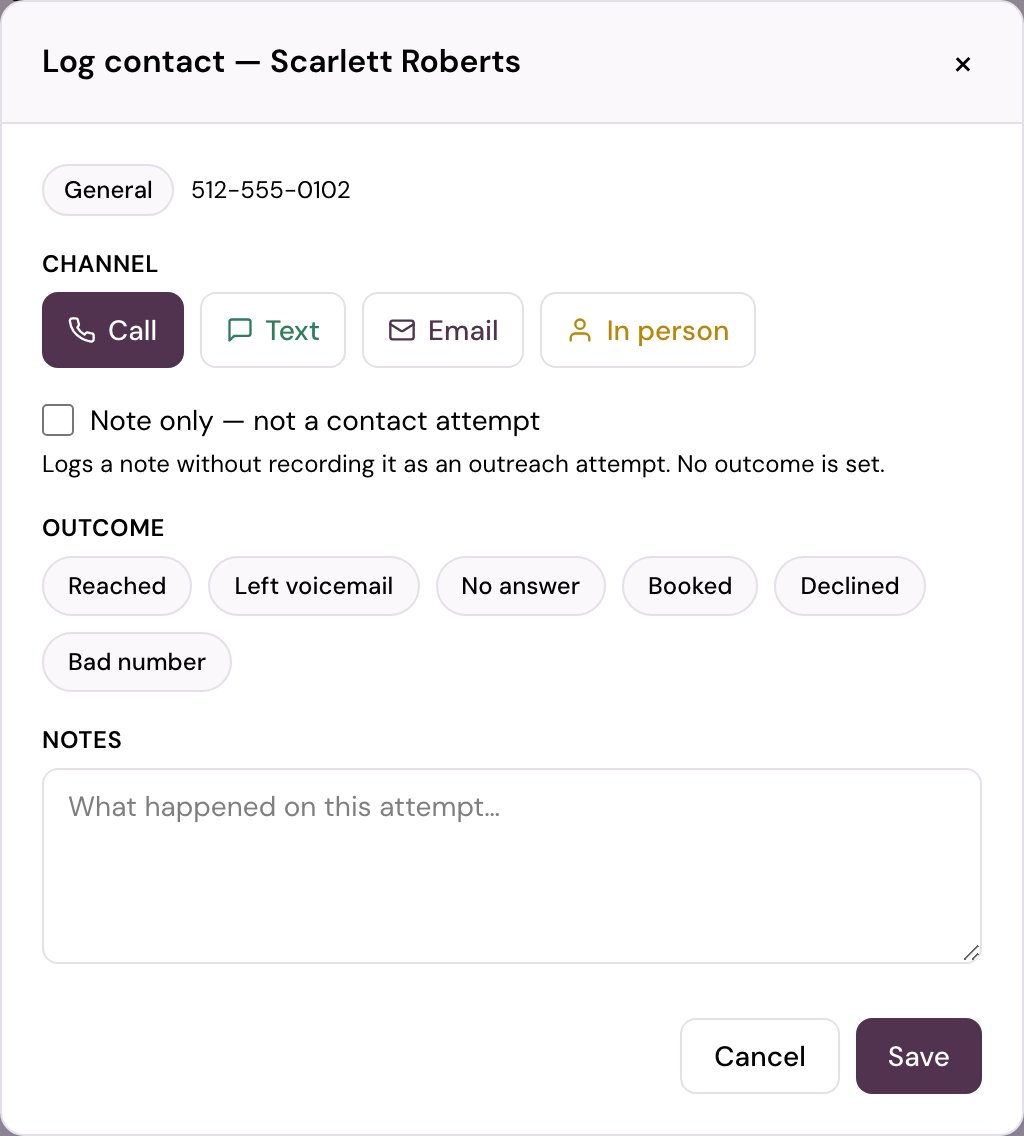
+ Log contact in the profile header and Call to Rebook (see Front Desk Dashboard) opens the same dialog: pick a Channel (Call, Text, Email, In person), an Outcome quick-pick (Reached, Left voicemail, No answer, Booked, Declined, Bad number — or leave it blank), and an optional Notes field, then Save. The entry shows up immediately in this profile's Contact history tab and, for Call to Rebook attempts, in the Contact column for that qualifying appointment too.
Where this client came from
When a client originally arrived as a lead — a Meta ad, a website form, a tracked call — their profile connects the two halves of the story (new in the July 2026 update, visible to users with CRM access):
- An Acquisition card shows the lead source, marketing channel, campaign and ad, and the inquiry date.
- A Before first visit timeline shows what happened between inquiry and first appointment — texts, calls, and follow-ups your team logged while they were still a lead — read-only, right above Visit history.
Clients who never came through a lead source simply don't show these — nothing to configure.
Visit history
The Visit history card lists the client's most recent visits, each showing the date, the service performed, and the stylist who performed it. Click View all N visits to expand the full history.

Account & membership
Shows the client's account balance, and for each membership: its name and status, when its contract renews, whether autopay is active, and whether it's currently suspended.
Bishops doesn't sell memberships, so only the account balance applies on this card.

Who can do what
Viewing profiles, including the Contact history tab, is open to staff with CRM access, and read-only to staff with Front Desk access. Logging a contact (+ Log contact in the profile or Call to Rebook) needs Front Desk access. Adding or editing tags, notes, patch tests, photos, and consultations requires CRM access — a Front Desk view is read-only. The Front Desk toggle lives in Managing users.
The profile is most valuable when the whole team feeds it: a tag added at checkout, a formula recorded after the service, a photo at the consult. Each takes seconds and saves the next person from starting cold.
Viewing is open to staff with CRM access, and read-only to Front Desk staff. Logging a contact (+ Log contact in the profile or Call to Rebook) needs Front Desk access. Adding or editing tags, notes, patch tests, photos, and consultations requires CRM access.