Feedback
The Feedback tab is the Client Feedback & Redo Tracker — log a guest complaint or kudos, and if the service had to be redone, track that too: the initial service and stylist, the redo's stylist and date, and photos for context. The Sales Dashboard's Guest Feedback & Quality section reads from what's logged here.
 1234
Header actions
The refresh icon reloads the list. The download icon exports the currently-filtered list to CSV (guest, feedback date, initial stylist, service date, service type, redo stylist, redo date, issue, comment, and Complaint/Kudos). + Add opens the form to log a new entry.
Filters
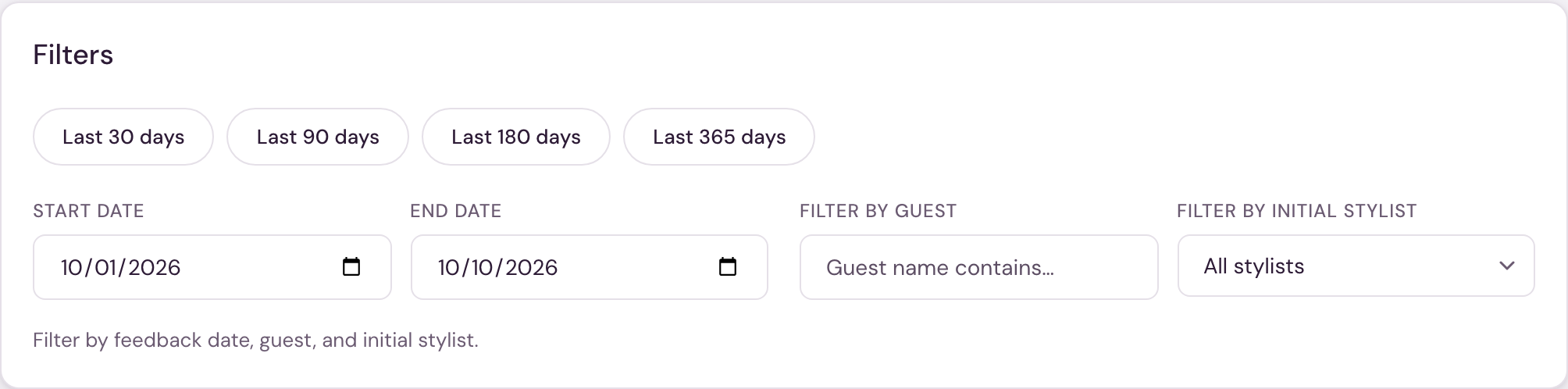
Date presets — Last 30 days, Last 90 days, Last 180 days, Last 365 days — set the Start date/End date fields for you, or set them directly. Filter by guest narrows to guest names containing your text, and Filter by initial stylist narrows to one stylist. Filters apply as soon as you change them.
The feedback table
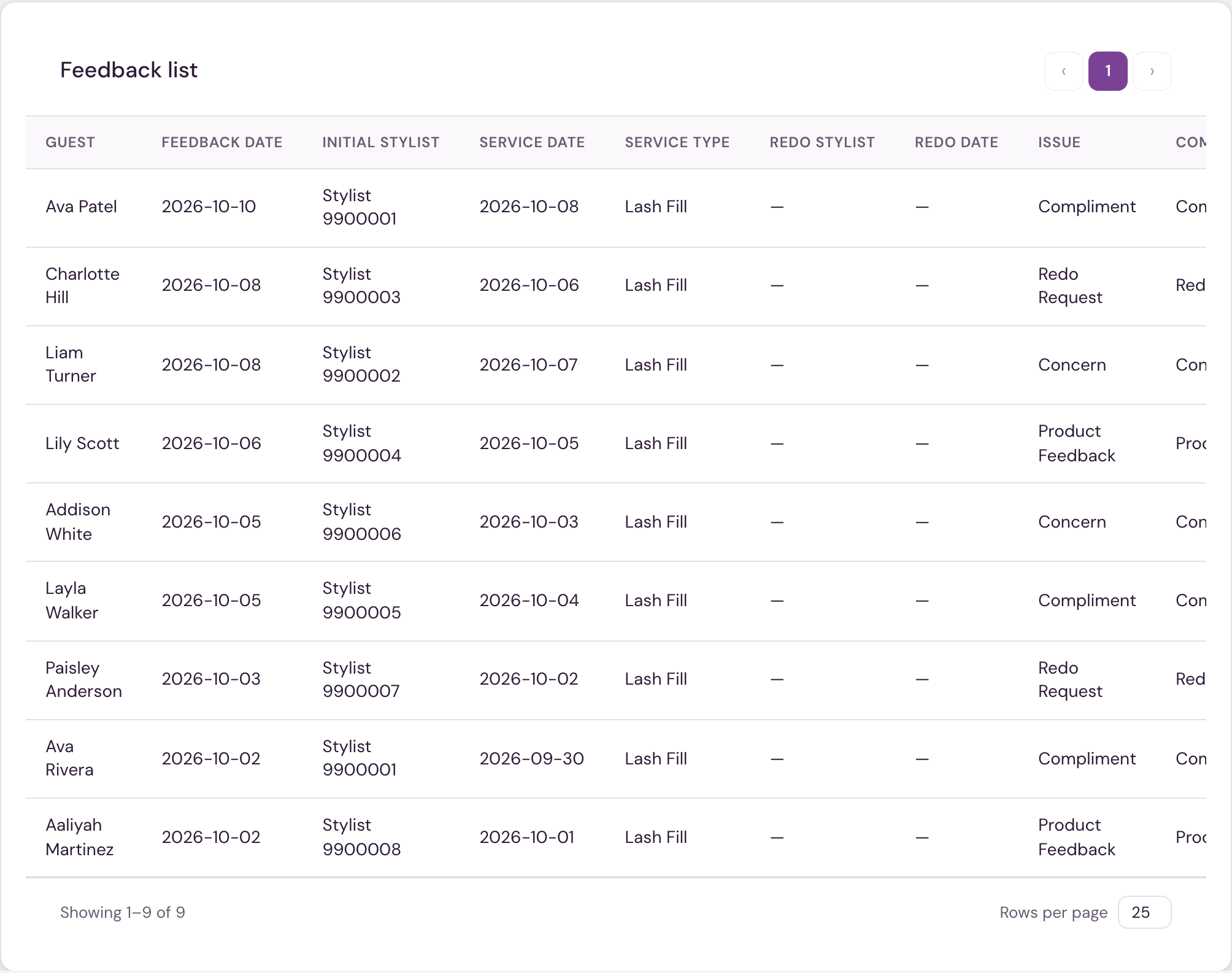
Each row shows: Guest, Feedback date, Initial stylist, Service date, Service type, Redo stylist, Redo date, Issue, and Comment (drag the handle on the Comment header to resize the column). A photo-attachment pill shows the count (e.g. "2/2 images") when a row has attachments, and a Type badge marks each row Complaint or Kudos.
Click any column header to sort; click a row to open it for editing. At the bottom, choose rows per page (10/25/50/100) and page through the list with the arrows.
Adding or editing feedback
The form is organized into sections:
- Guest & feedback — Brand, Guest name, Feedback date.
- Initial service — Initial stylist, Service date (required: Save asks for it if it's blank), and Service type — a searchable dropdown that narrows to the service types that guest has actually had once you've entered a guest name (and a service date); otherwise it lists your brand's service types.
- Redo — Redo stylist and Redo date.
- Issue & notes — an Issue text field, a Comment field, and a Complaint/Kudos toggle (defaults to Complaint).
- Attachments — up to 2 photos (JPEG/PNG, up to 5 MB, resized automatically). Click a thumbnail to enlarge it; click the × to remove it.
Editing an existing entry also offers Delete.
Feedback appears for staff with Front desk access (corporate and admin users have it automatically).