Front Desk Dashboard
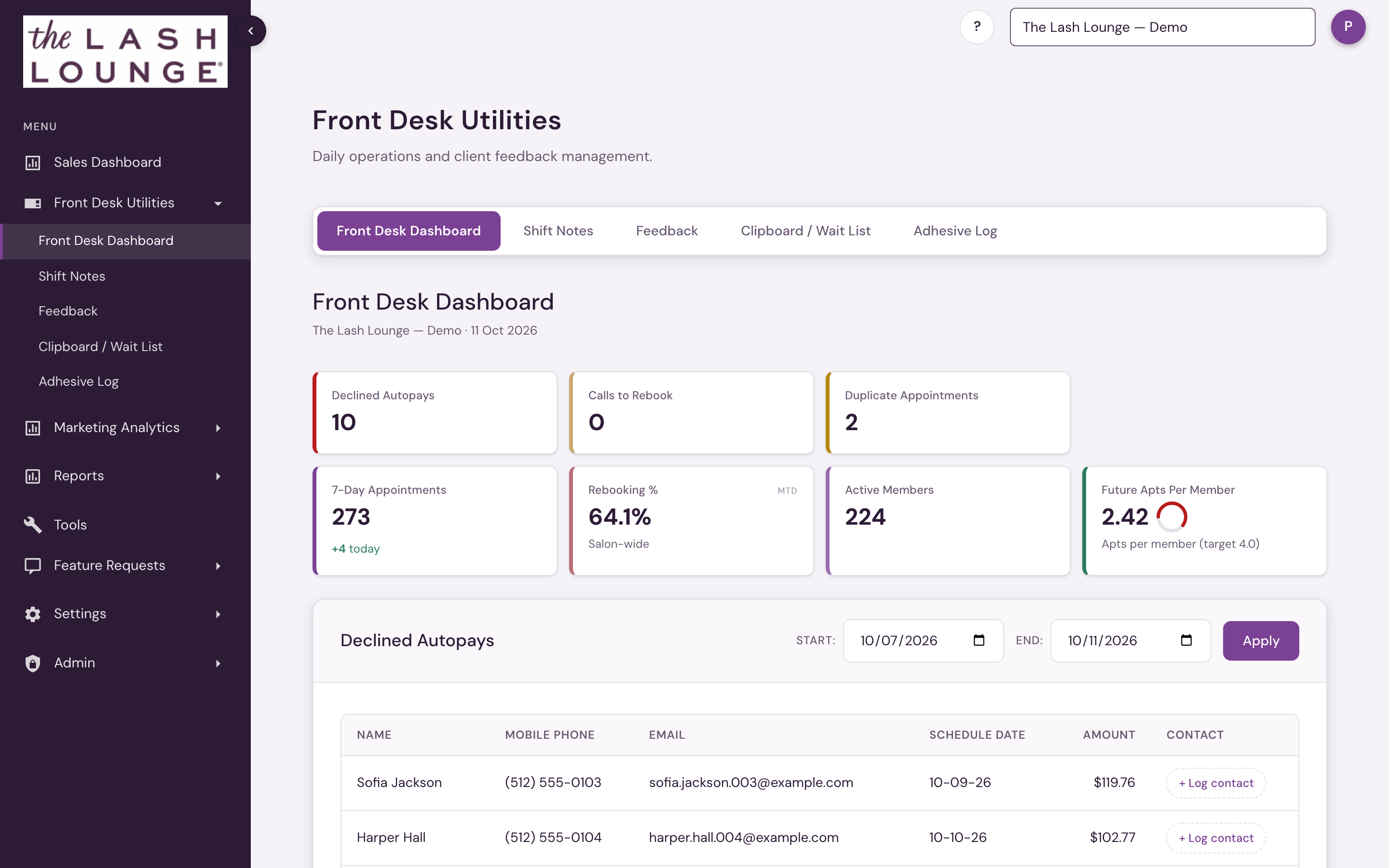
The Front Desk Dashboard is the landing tab of Front Desk Utilities — two rows of KPI tiles (action items for the day, then standing health numbers), followed by the action tables (with date filters and per-row actions) that back each tile.
Frenchies teams see this page as the Concierge Dashboard, under Concierge Utilities. Everything below works the same.
 12
KPI tiles
The tiles come in two rows. The first row is action items — Declined Autopays, Calls to Rebook, Duplicate Appointments, and Missing Deposit (or No CC on File / No Deposit / CC, depending on what's found). These stay in place even at zero — a 0 means there's nothing to work right now, not that the check didn't run. Missing Deposit appears only when your deposit policy checks for something (see Settings → General). The second row is the standing health numbers: 7-Day Appointments, Rebooking %, Active Members, and Future Apts Per Member.
7-Day Appointments shows what is currently on the books for the next seven days. An add-on booked onto an appointment, such as a stylist upgrade, is part of that appointment and isn't counted again; a service booked as its own appointment, such as a lash removal before a full set, counts on its own. Beside the total, a plus-or-minus change shows how many appointments have been added or removed since this morning's opening count, which is taken once the morning appointment update from your booking system finishes (not at midnight). If today's opening count isn't available, the current total still shows and the change reads Change unavailable rather than showing a misleading zero.
Rebooking %Of the guests who came in that day, the share who left with their next appointment already on the books.Full definition → is this month's share of attended guests who left with their next visit booked (with any stylist) — the same month-to-date figure the Sales Dashboard's Salon Health section shows. The caption under it reads Salon-wide (Shop-wide at Bishops, Studio-wide at Frenchies) because it covers the whole location, not one stylist. On the 1st of the month, before the new month has a completed day, the tile shows last month's final figure and its corner label reads the month (for example Sep final) instead of MTD.
The Future Apts Per Member tile pairs its number with a small circular gauge toward a 4.0 target, colored green, yellow, or red depending on how close you are.
Bishops doesn't sell memberships, so the membership tiles and sections — Declined Autopays, Active Members, Future Apts Per Member, and Membership Management — don't appear. The second row shows 7-Day Appointments, Rebooking %, and Avg Revenue per Visit: this month's average sale per visit across the whole shop, the same figure as the Sales Dashboard's Salon Health tile. When a goal is set for the month in Settings → Goals, the caption shows it. On the 1st of the month the tile shows last month's final figure, labelled with the month.
The Duplicate Appointments tile and table don't appear at Frenchies studios.
Action tables & Apply/Refresh controls
Below the tiles, each section has its own date range and an Apply (or Refresh) button:
- Declined Autopays — Start/End date + Apply. Declines belonging to memberships that were already cancelled or frozen are left out, so the list stays worth working. If the booking system deletes or replaces a scheduled charge, its outdated decline is also removed from the list; genuine unresolved declines remain. Click Notes on any row to open the same Log Contact dialog used across the platform: recent activity for that decline, channel and outcome quick-picks (including Resolved — payment fixed, which marks the row paid), and notes. Clear outreach history resets the row's outreach if it was logged in error. Every attempt also appears on the client's profile under Contact history. Not shown at Bishops.
- Missing Deposit — Start/End date + Apply. Lists clients booked in the range who don't meet your salon's booking requirement, one row per client (their earliest appointment), with a Why Flagged column telling you exactly what's missing — No credit card on file, Credit card on file is expired, or the deposit shortfall and what's on account. The section title switches between Missing Deposit, Missing CC on File, or Missing Deposit & CC on File depending on what the range turns up, and the whole section is hidden when your deposit policy is "No deposit check." Set the policy under Settings → Salon Settings → General. Lunch, breaks, and staff meetings are never listed. If the check can't run, the section says so rather than showing an empty list.
- Call to Rebook — a Reference date + Refresh, grouped into one sub-table per rebook campaign (see below).
Every table column header includes a small copy icon (⧉) — click it to select and copy that column's values.
Call to Rebook — Contact and Text actions

Call to Rebook finds clients who had a qualifying service, haven't been back since, and don't already have a future appointment booked — grouping them into one sub-table per rebook campaign so the desk has an actual call list instead of guessing who's overdue. A "campaign" here isn't a marketing campaign; it's a rebooking window configured in Salon Settings → Call to Rebook — for example, a 30–45 day check-in after an extension set. Each is shown as a colored badge with its day range (for example, "Extensions to Rebook · 30–45 days"), and the subtitle under it shows how many clients are in that campaign for the period.
If no rebook campaigns are configured yet, the section says so instead of showing an empty call list — with a Set up Call to Rebook button that jumps straight to Salon Settings → Call to Rebook for those with settings access, and a note to ask an administrator for everyone else.
The POS Notes column shows the client's notes and alerts from your point-of-sale system. It isn't an editable field here.
POS Notes shows what your team typed in Zenoti: the note on the booking, the alerts set on the guest that are still switched on, and the notes on the guest's profile, newest first. Alerts are labeled Alerts, since Zenoti has no red or yellow alert. Notes marked private in Zenoti are included. The alerts Zenoti raises by itself, such as a past-due payment or a possible duplicate guest, are not shown. Notes and alerts added in Zenoti today show here the next day.
Next to it, a Contact column tracks call-list progress. The + Log contact button stays available before and after the first attempt, including on smaller screens. After a contact or note, the cell shows the latest entry, who logged it and when, and a snippet of its text. Notes are labeled Note and receive the same prominence as contact attempts, with + Log contact and View history together below the summary. + Log contact opens the Log Contact dialog — pick a channel (Call, Text, Email, In person), an outcome quick-pick (Reached, Left voicemail, No answer, Booked, Declined, Bad number), and an optional note, then Save. Contacts and notes are grouped by the qualifying appointment within each campaign, visible to the whole team, and also show up on the client's Client 360 → Contact history tab — see Log Contact for the dialog itself. Logging a contact needs Front Desk access.
When a client has contacts or notes for the current Call to Rebook appointment, choose View history in their Contact cell to read earlier contacts and notes for that appointment, including notes that did not count as a contact attempt. Repeated attempts and notes about the same appointment stay together. When a later appointment makes the guest eligible again, their contact history starts fresh for that visit; earlier campaign history stays in Client 360 and isn't mixed into the new one. Declined-autopay contacts are kept separate and never show in rebook history. The history includes everyone on the team across shifts, with the staff member, date and time, channel, outcome, and full notes. It starts with the newest 100 entries; Show more loads older entries up to the latest 500. Close it to return to the same list, or choose Log contact to add your follow-up. The logging dialog also shows Previous contacts, so the next shift can review what has already happened before calling. Declined Autopays' recent activity likewise shows full notes and older entries.
Other daily sections

- Today's Appointments — every guest on today's schedule, split into Non Members and Members tables (a single table at Bishops, which has no memberships), each independently sortable by clicking a column header. Members lists guests with an active membership, counted the same way as the Active Members tile; everyone else is under Non Members, including a guest whose membership is on hold or whose membership payment has declined, since that is money the salon can collect while they're in. The service is followed by the stylist performing it. POS Notes labels and orders each available source as appointment notes, red alert, yellow alert, then regular client notes. At Bishops shops and Frenchies studios the order is appointment notes, alerts, then the notes on the guest's profile. Alongside the visit itself, Next Appointment and Scheduled Through show that guest's earliest and furthest-out future booking — if both are blank, they have nothing on the books beyond today, which is exactly the moment to catch them at checkout and get them rebooked.

- Duplicate Appointments (not shown at Frenchies) — a standalone table flagging appointments that look duplicated, including two different services from the same service group booked for one client (for example, a Classic Refill and a Volume Refill).
Several services booked together as one visit count as a single appointment, not duplicates — only a service repeated across two separate visits is flagged. If you delete an appointment or remove a service from a visit in Zenoti, it drops out of this check once the change comes through.

- Future Appointments Per Member — a larger version of the KPI tile, showing the average with a linear progress bar toward the 4.0 target.
- Membership Management (not shown at Bishops) — active/suspended member counts and month-to-date membership movement, the same section shared with the Sales Dashboard.
The Front Desk Dashboard appears for staff with Front desk access (corporate and admin users have it automatically). Membership tiles and sections don't appear at Bishops shops.