Shift Notes
Shift Notes is the daily handoff log — a shared, rich-text note for each date, seeded automatically from your salon's template. Everyone viewing the same date sees each other's edits as they happen, so it's a genuinely shared log rather than a document someone has to remember to send.
 1234
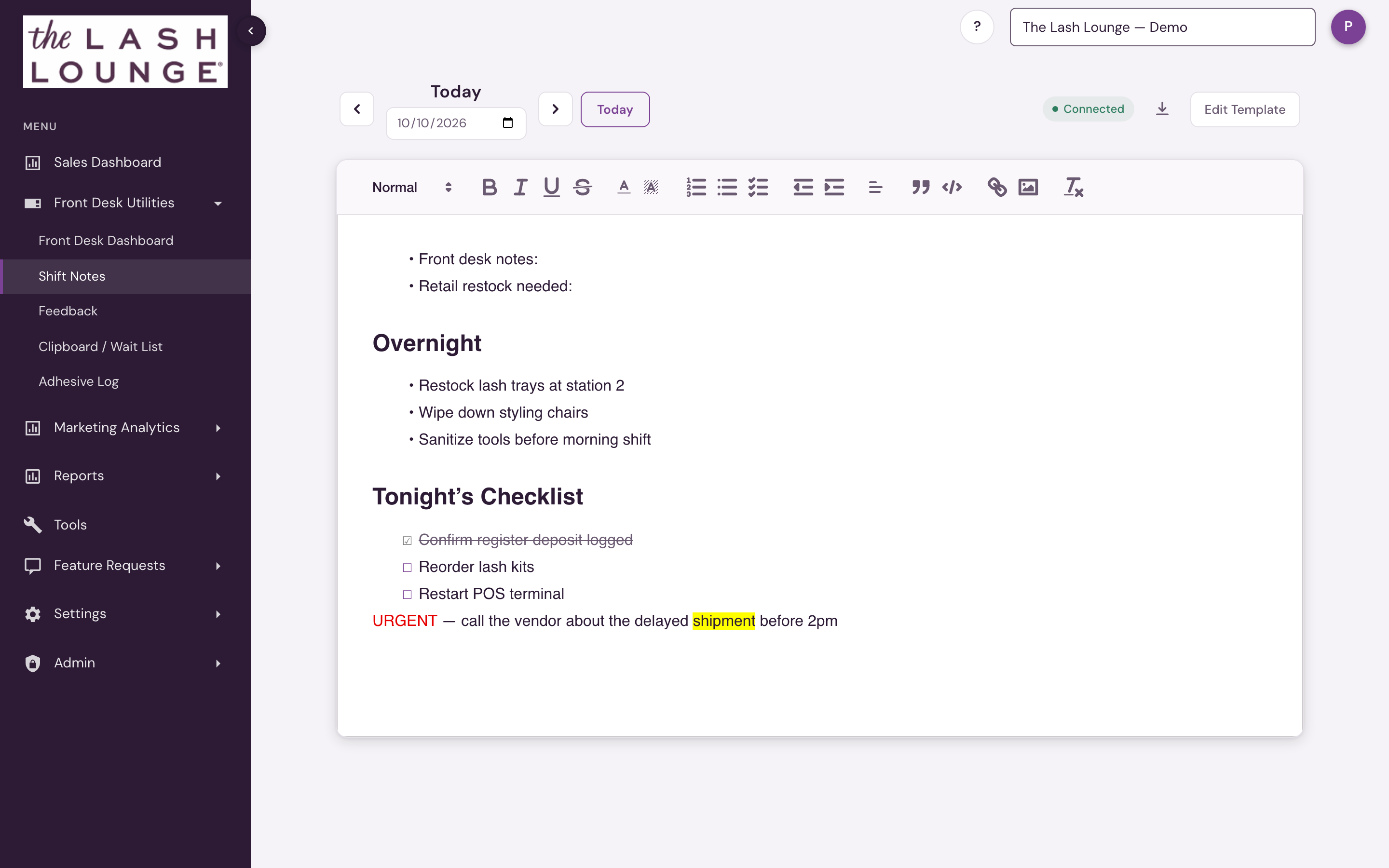
The nav bar

The Prev/Next arrows step the note back and forth one day at a time. The date label reads Today, Yesterday, Tomorrow, or the weekday and date for anything further out.
To jump to a specific date, pick it in the date field — a pulsing Go button appears once you've changed it; click Go to load that day. The Today button returns to the current date and is highlighted when you're already on it.
The editor & formatting toolbar
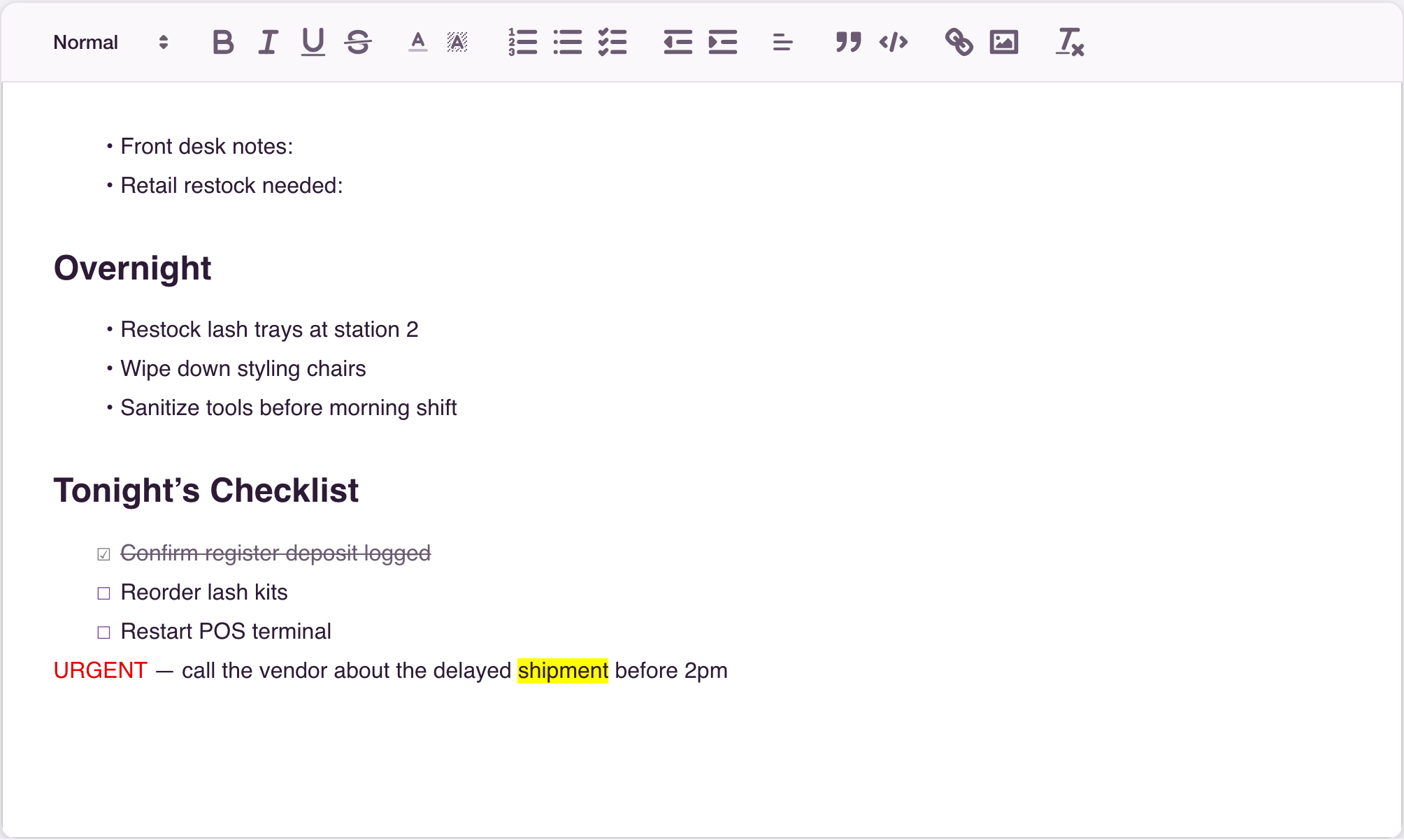
The toolbar turns a flat memo into a real handoff document. Break a busy day into headings (Overnight, Restock, Maintenance, Callouts) so the next shift can scan straight to what matters to them. Use a checklist for anything that needs to get done and checked off — restock items, a callback list, an open ticket — instead of retyping the same note until it's handled. Text color and highlighting flag what's urgent so it doesn't get buried under routine notes, and strikethrough marks something resolved while keeping a record that it happened. Blockquote is useful for capturing exactly what a client said or was promised, word for word. Numbered/bulleted lists, indentation, bold/italic/underline, alignment, links, code blocks, and clear formatting round out the rest of the editor for anything else the note needs.
You can attach up to 2 images per note (JPEG or PNG — they're resized automatically before upload). Click an inserted image to enlarge it in a lightbox.
Templates
If a shift note for a date is completely empty, salon360 automatically applies your salon's template the first time anyone opens that date — a Template applied pill confirms it happened.
Click Edit Template to open the template editor (its own rich-text editor) and define your salon's standard structure, headings, and content. Once saved, that template is what gets applied to every future empty date.
Connection status & exporting
The connection pill in the top-right shows Connected, Saving... (syncing your latest edit), Reconnecting..., or Offline. When offline, editing is paused and a banner explains why — an expired session shows its own message — with a Try Now button to retry the connection.
The download icon exports the note for whichever date you're currently viewing (not necessarily today — navigate to another day first if that's the one you need) to a .docx file.
Shift Notes appears for staff with Front desk access (corporate and admin users have it automatically).