Clipboard / Wait List
The Clipboard / Wait List isn't available for Bishops or Frenchies. Zenoti runs its own waitlist, so keep using that one — one list rather than two.
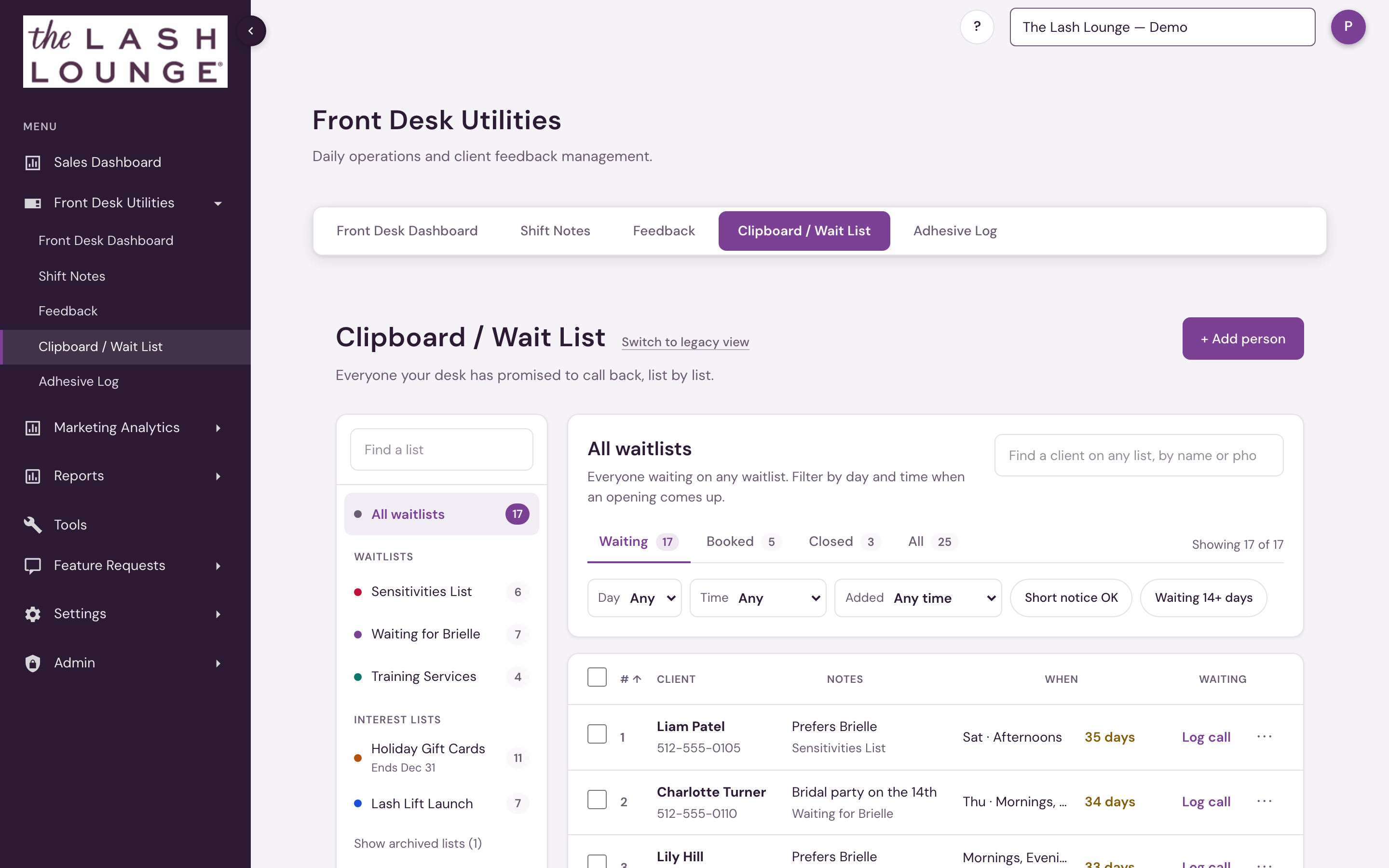
The Clipboard / Wait List replaces the clipboard and sticky notes at the front desk. Each list is a set of people you've promised to call back: someone waiting for an opening with a particular stylist, guests who need a sensitive-eye adhesive, clients who want to hear when a new service starts, or everyone asking about holiday gift cards.
There are two kinds of list:
- Waitlists — call people one by one when a spot opens. Each person can say which days and times work for them and whether they can come on short notice. When you reach them, they're Booked or Closed.
- Interest lists — collect names now and call everyone when it's ready: a service launch, a promo, gift cards. People move from Waiting to Contacted to Purchased (or Booked, depending on the list), or Closed. An interest list can have an end date and archive itself when it's over.
Lists belong to the location you have selected; each location keeps its own set.
Finding it: open Front Desk Utilities in the sidebar (or the Front Desk page) and choose the Clipboard / Wait List tab.
 123456
Lists
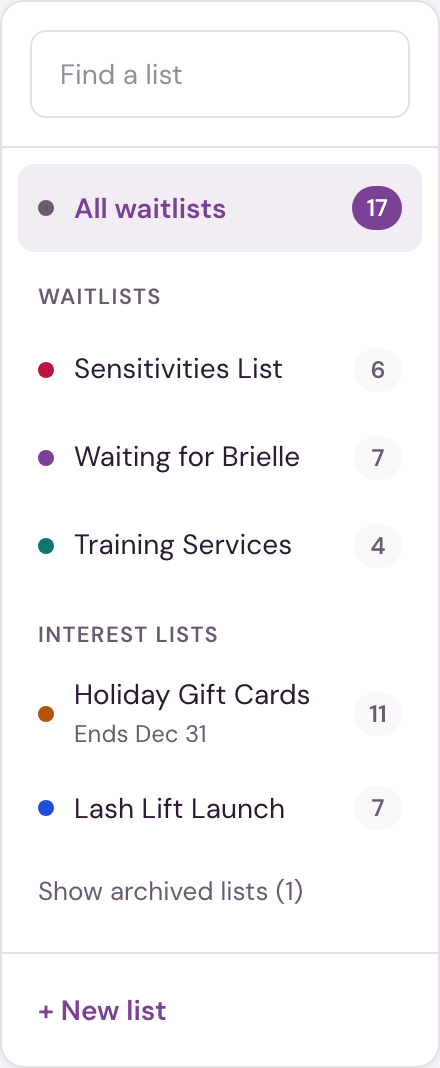
The panel on the left lists everything your location runs:
- All waitlists — everyone waiting on any waitlist, in one place. Use it with the Day and Time filters when an opening comes up and you want whoever fits it, whichever list they're on.
- Waitlists and Interest lists — each list with the number of people still waiting on it.
- Show empty lists — lists with nobody waiting fold away so a long set of lists stays short.
- Show archived lists — finished lists, with their results.
Find a list narrows the panel as you type, including empty lists.
Adding someone
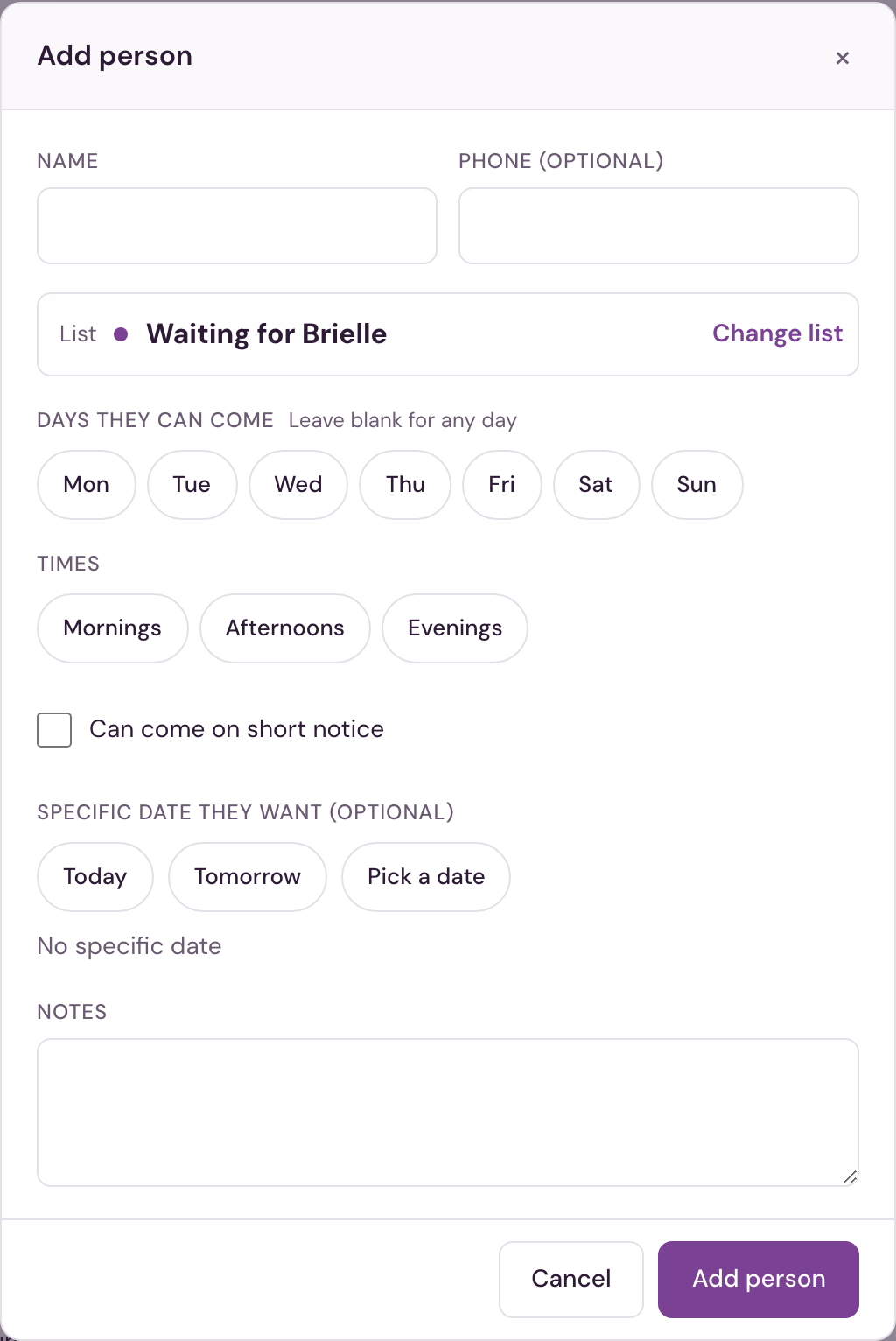
Click + Add person (top right) and fill in:
- Name (required) and Phone (optional)
- List — the list you're looking at, shown on one line; click Change list to pick another. From All waitlists every list is shown to choose from. Salon admins also see + New list… there, to start a list without leaving the popup.
- Days they can come and Times (waitlists) — leave both blank for any time.
- Can come on short notice (waitlists) — they'll take a same-day opening.
- Specific date they want (waitlists, optional) — Today, Tomorrow or Pick a date.
- Notes — anything the team should know.
Press Enter or click Add person.
Already on a list. If the name or phone number matches someone still waiting on any list, the popup shows who and where before adding anyone. Open that entry takes you to them; Add anyway adds the new entry.
Working a list
Status tabs across the top show how many people are in each status:
| List | Tabs |
|---|---|
| Waitlist | Waiting, Booked, Closed, All |
| Interest list | Waiting, Contacted, Purchased or Booked, Closed, All |
Each row shows:
| Column | Meaning |
|---|---|
| # | Arrival order among the people still waiting — 1 has waited longest. Sorting by another column never changes it. |
| Client | Name and phone, and the outcome once they're done (for example Closed: price). |
| Notes | Notes, plus which list they're on when you're viewing All waitlists. |
| When | On a waitlist: the days and times that work, Short notice OK, and any requested date. On an interest list: Last contact, the latest call and how it went. |
| Waiting | Days since they were added, in amber once someone has waited 14 days or more. |
Filters sit under the tabs, with Showing X of Y next to the tabs and Clear filters once any are on:
- Day and Time (waitlists) — a day or time filter also shows people who said any time works.
- Added — Any time, Last 7 days, Last 30 days, Last 90 days, 30+ days ago, or Custom… to enter your own from and to dates.
- Short notice OK (waitlists) and Waiting 14+ days (on the Waiting tab) — tap to turn on or off.
Sorting: click #, Client or Waiting to sort; click again to reverse.
Closing several at once. On the Waiting tab, tick the people to close (or the box in the header for everyone shown), choose a reason, and click Close selected. Waiting 14+ days followed by the header box is the quickest way to clear out old entries.
Undo. After any change a message at the bottom of the screen offers Undo for a few seconds.
More on each row (the ⋯ button):
- Edit details… — change anything you entered, move them to another list, or change their status (closing asks for a reason). Remove from list… takes them off the list entirely; use it for an entry added by mistake.
- Mark purchased / Mark booked (interest lists) — for someone who comes in and says yes.
- Move back to Waiting — reopen someone who was booked or closed.
- Move to another list… — their notes and call history come along. Moving onto an interest list adds their days and times to the notes.
Export to CSV from the ⋯ next to the list name downloads everyone on that list, live or archived.
Logging a call
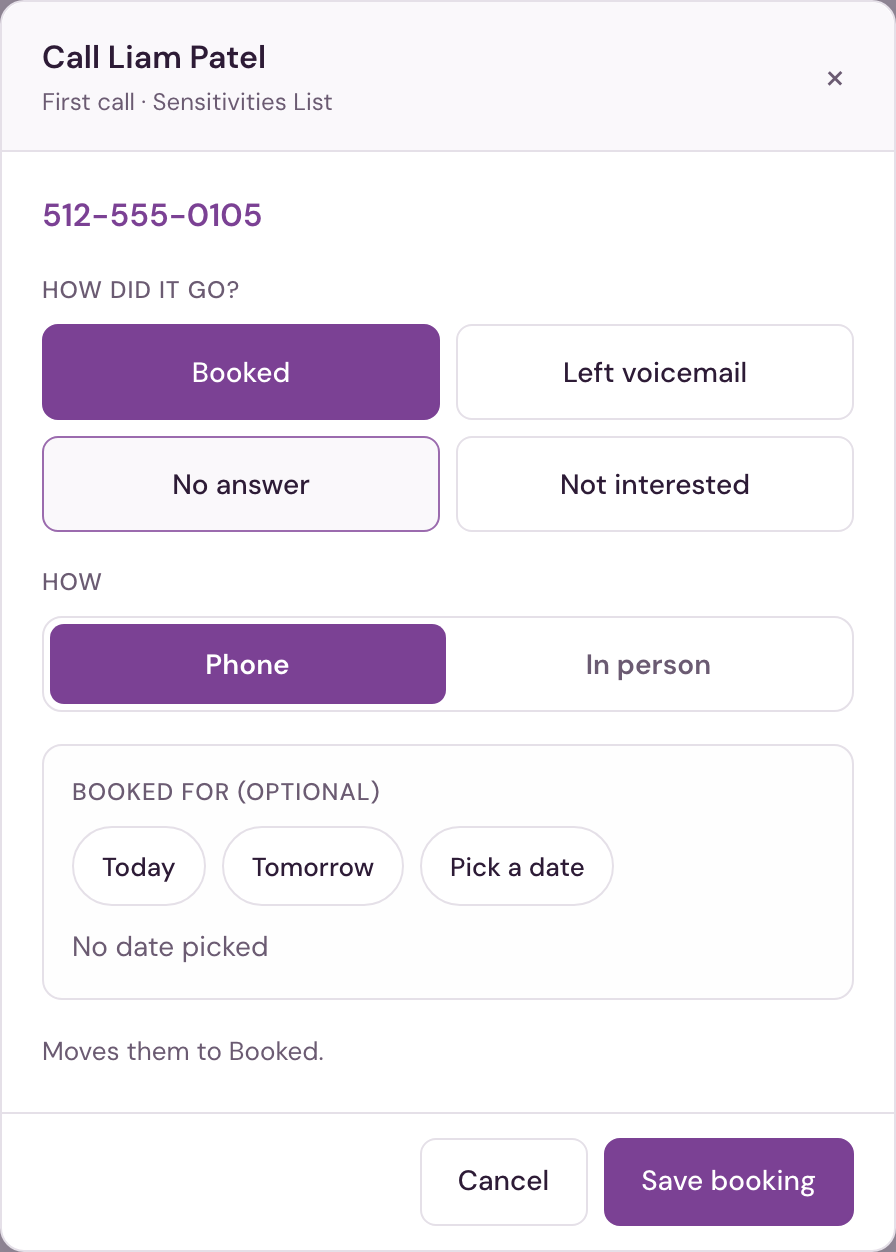
Click Log call on a row. The popup shows their phone number (tap it to dial on a phone), how many tries so far, and asks how it went:
| Outcome | What happens |
|---|---|
| Booked (waitlists) | They move to Booked. Optionally note when: Today, Tomorrow or Pick a date, then a time. |
| Purchased or Booked (interest lists) | They move to that tab. |
| Told them (interest lists) | They move to Contacted. |
| Left voicemail / No answer | Counts as a try; they stay on Waiting. |
| Not interested | Choose a reason; they move to Closed. |
Choose Phone or In person for how you reached them. Each call is saved to the client's contact history.
Finding a client
Find a client on any list (top right of the list) searches every list at once by name or phone. Each match shows the list, their status and how long they've waited; pick one to open that list with them highlighted. It's the quick answer to "am I already on the list?".
Interest lists
An interest list collects names for something that isn't bookable yet — a new service, a seasonal promo, gift cards.
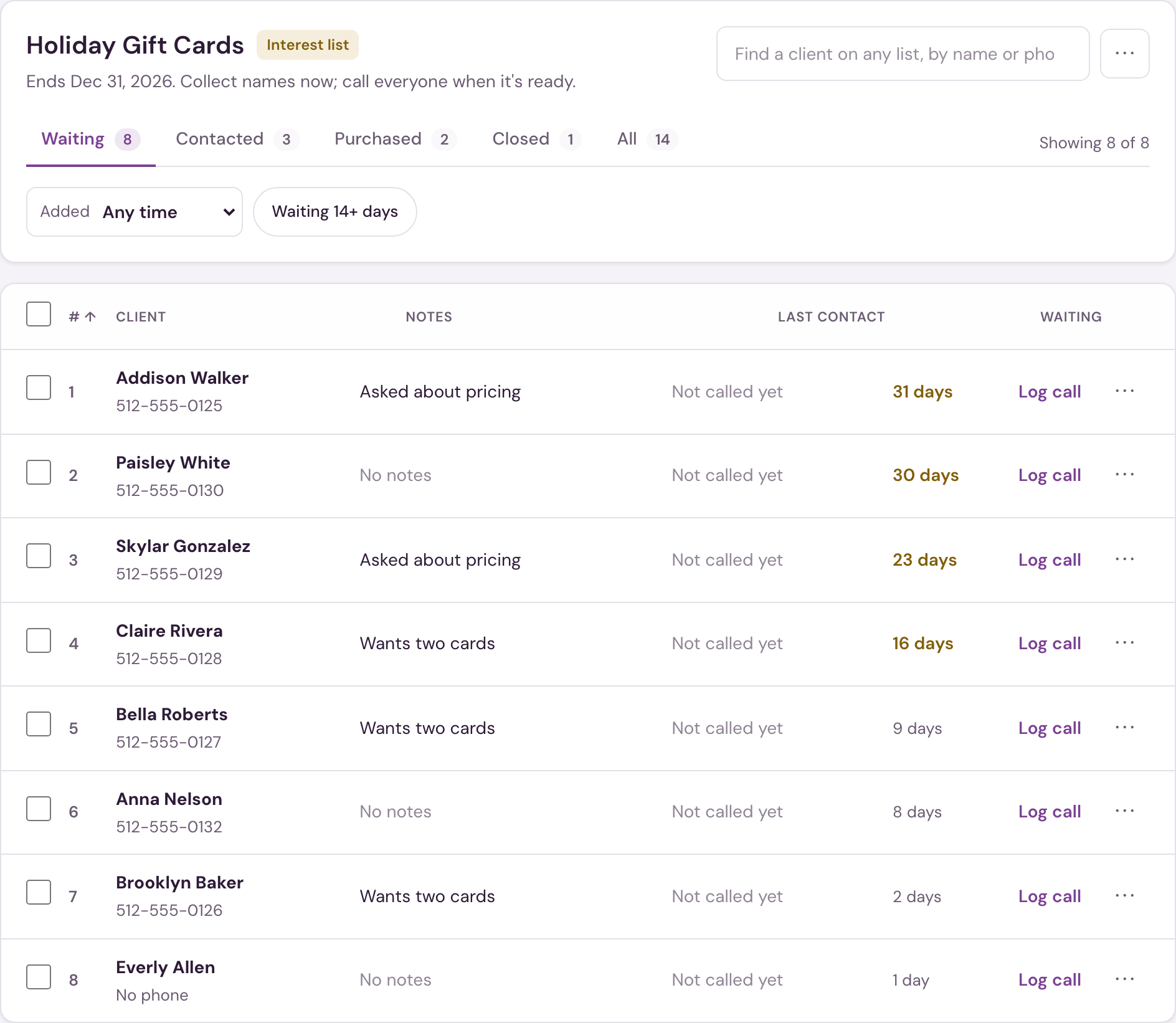
- Waiting — signed up, not called yet.
- Contacted — you told them about it.
- Purchased or Booked — they said yes. Each list uses one of the two, chosen when it's made.
- Closed — not interested, or the list ended.
End date. A list can have an end date (shown as Ends in the list panel). If Archive it 2 days after it ends is ticked, the list archives itself two days after that date and anyone still waiting is closed with the reason List ended.
Managing lists
Salon admins (staff with the Salon Admin permission) and corporate or admin users create, edit and archive lists. Everyone else on the desk works the lists they're given.
+ New list (bottom of the list panel, or + New list… inside Add person):
- What kind of list? — Waitlist or Interest list. This can't be changed later.
- Name and Color — the color marks the list in the panel.
- Interest lists: End date (optional: No end date, End of this month, In 30 days or Pick a date), Archive it 2 days after it ends, and whether a yes is marked Purchased or Booked.
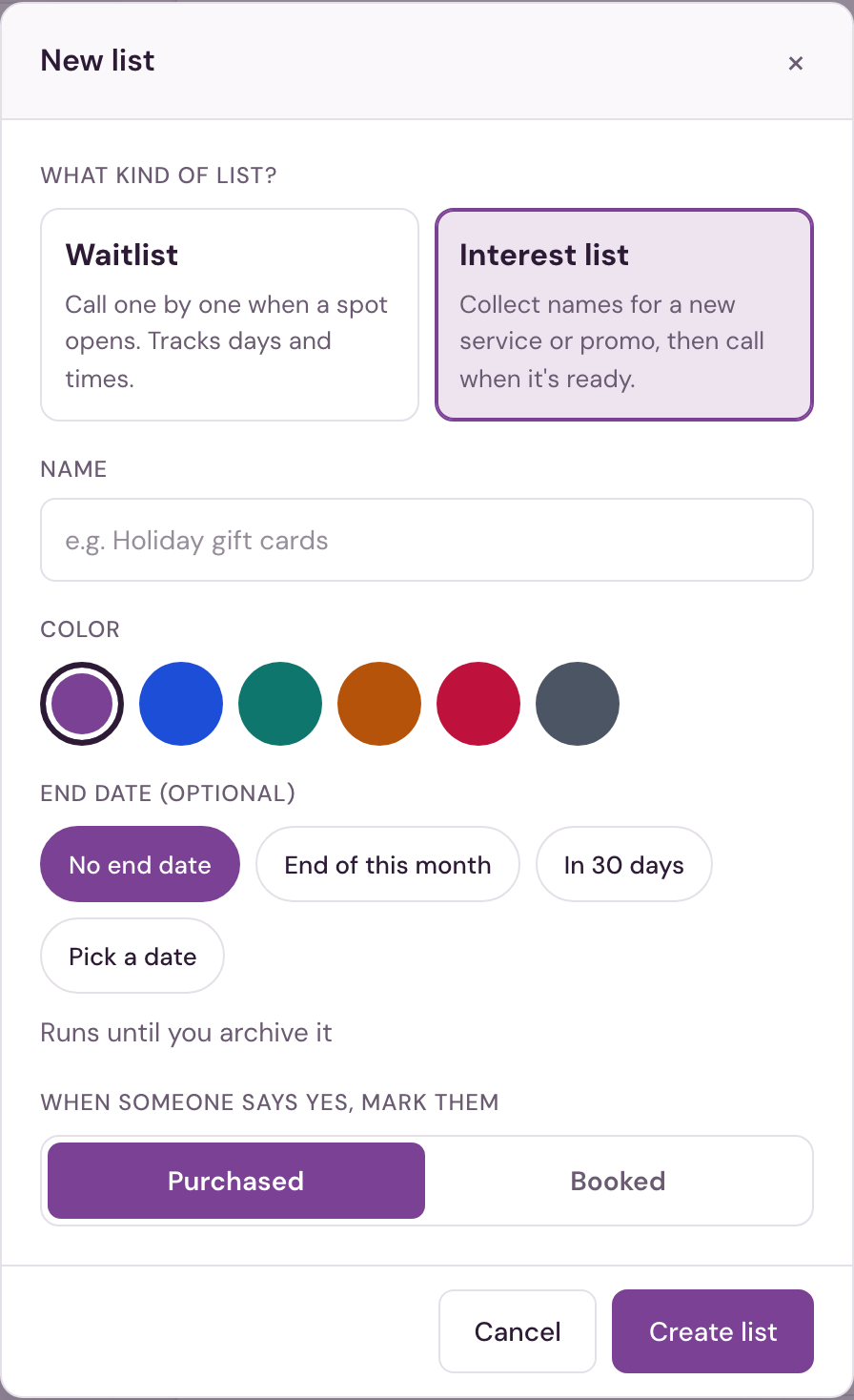
Edit list… (the ⋯ next to the list name) changes the name, color and interest-list settings.
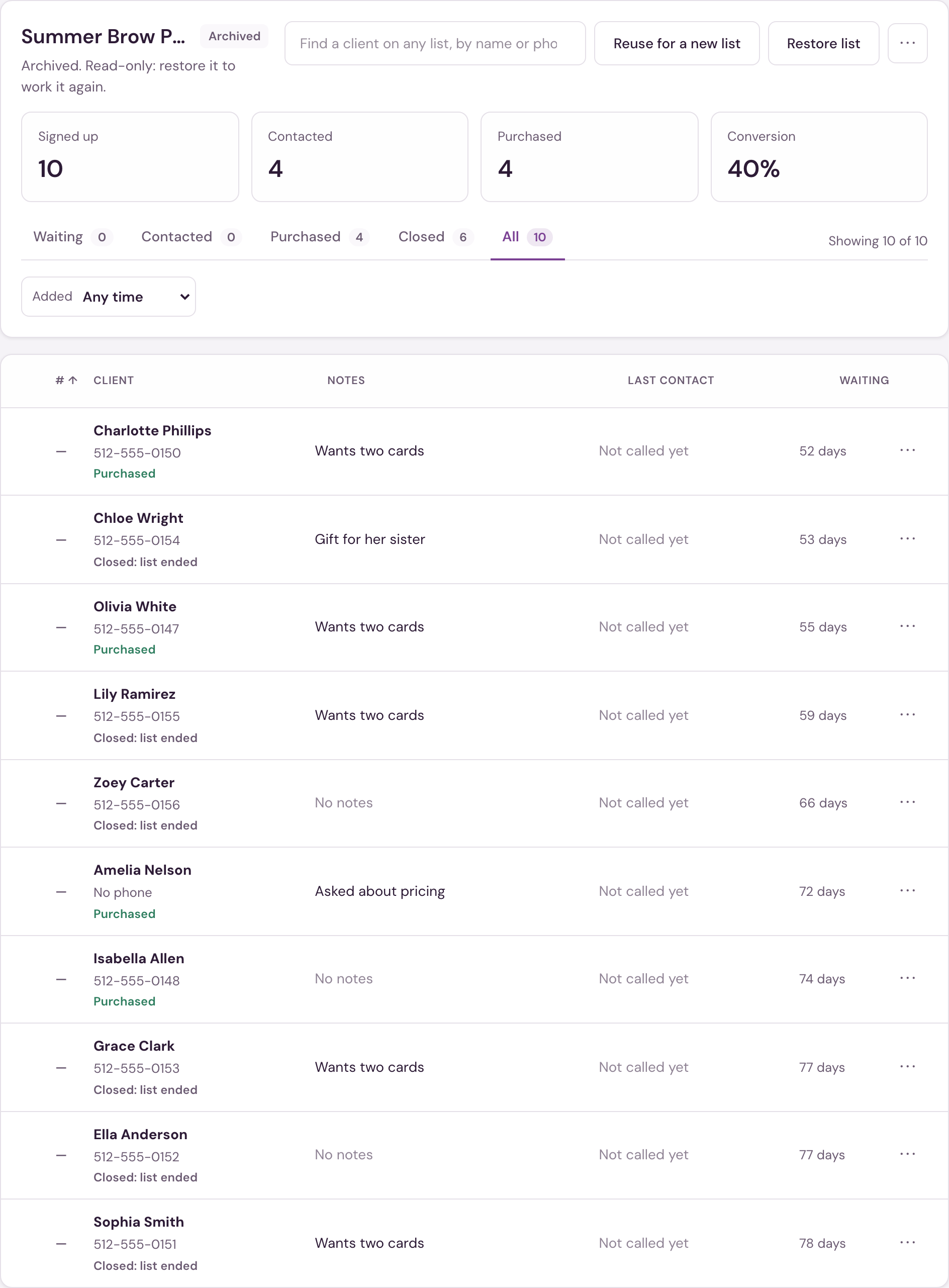
Archive list… (inside Edit list) moves a finished list under Show archived lists. If anyone is still waiting, you're asked first; archiving closes them with the reason List archived. The General list can't be archived.
Archived lists are read-only and open on All. Interest lists show their results — how many signed up, were contacted and said yes, and the conversion rate. From an archived list:
- Restore list brings it back. People who were closed when it was archived stay closed; move them back to Waiting if needed.
- Reuse for a new list starts a new list with the same settings, without the people.
General. A location with no lists of its own starts with one called General, so the desk can add someone straight away.
Classic Wait List
Use the classic Wait List (next to the page title) shows the earlier Wait List page: one table of waitlists with Waiting, Completed and Cancelled, and Manage Wait List Types. Interest lists only appear in the new view. Both views show the same people: Completed in the classic Wait List is Booked here, and Cancelled is Closed. Log contact in the classic Wait List opens the same Log call popup.
The choice is remembered for you on this device. On the classic page, Back to the Clipboard (in the line above the page title) brings you back.
On a phone
On a phone or small tablet, the list panel becomes a button at the top showing the current list; tap it to switch lists (Use the classic Wait List is at the bottom of that list). Filters open from a Filters button. Each person shows as a card with Log call underneath, and popups open from the bottom of the screen.
Front desk access — add people, log calls, edit, move, close and remove entries, and export lists. Salon admin (the Salon Admin permission) or corporate/admin — everything above, plus New list, Edit list, Archive list, Restore list and Reuse for a new list. The tab doesn't appear at Bishops shops or Frenchies studios.