Lead Manager
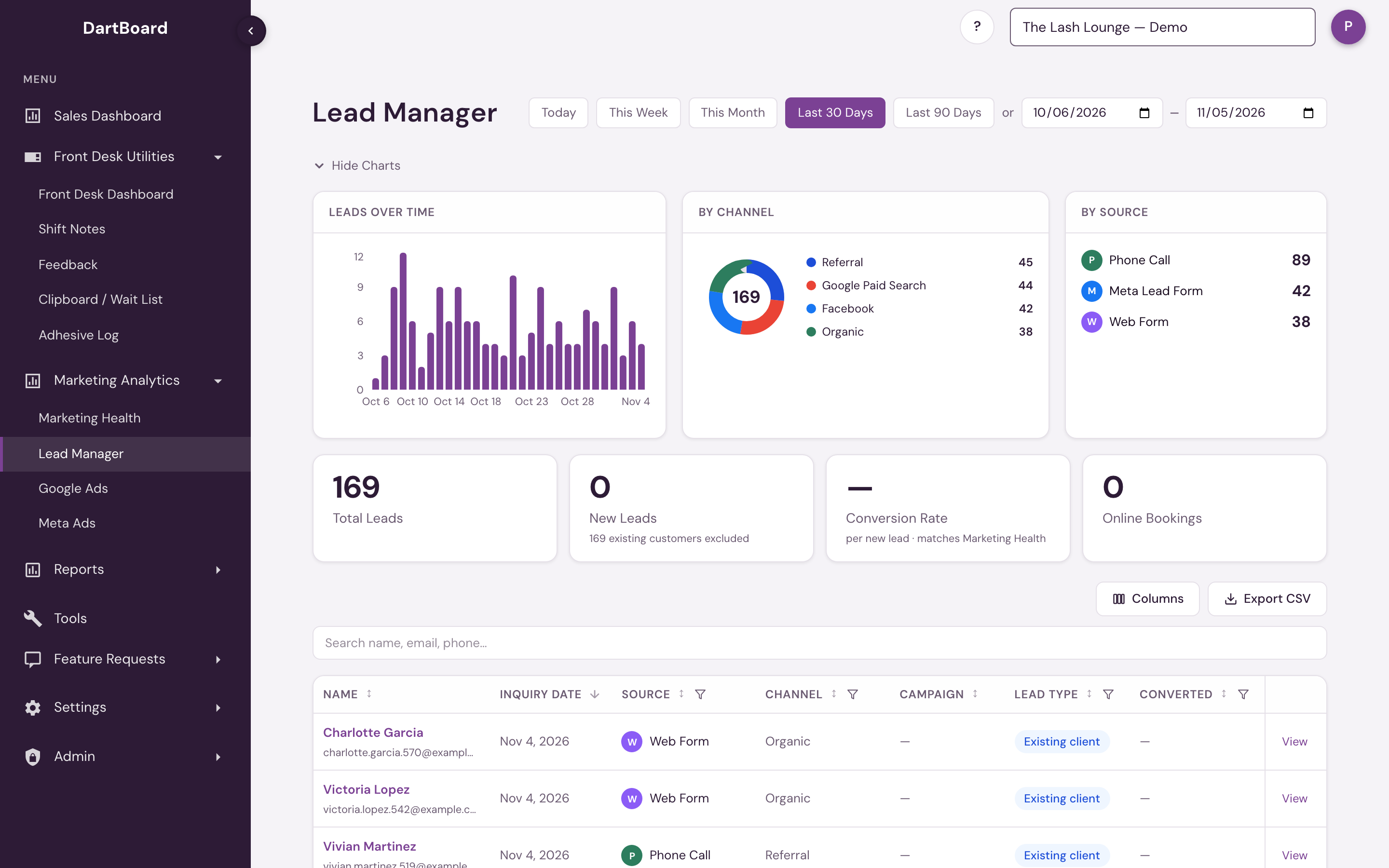
The Lead Manager (under Marketing Analytics) is the single place to see every inquiry your salon receives — Meta lead ads, website form fills, and tracked phone calls, all in one sortable, filterable, exportable table. Appointments guests book themselves on your online booking site are not leads: they have their own Online bookings view and are kept out of every lead count (see Online bookings).
 1234
The key idea: one row per inquiry, not one per person. If the same prospect reaches out three times, you'll see three rows — each labelled so you can tell a brand-new lead from a repeat inquiry.
The KPI row and charts
Across the top:
- Total Leads — every inquiry in the selected date range. Days follow the salon's own clock, so an evening inquiry counts on the day it arrived at the salon. The quick ranges (Today, This Week and the others) start from your own calendar day. When a range holds more inquiries than the table loads, the tile still shows the full count and a notice says the table and charts cover the most recent rows.
- New Leads — the same count used by Marketing Health: first qualifying inquiries, excluding existing customers and repeat inquiries. Its note uses the same exclusion breakdown as Marketing Health — for example, 11 excluded — 1 existing customer, 10 repeat inquiries — and stays hidden when nothing was excluded.
- Online Bookings — appointments guests booked themselves online in the date range, including waitlist requests. Bookings the guest cancelled online are not counted; the line under the number shows how many there were. Not a lead count: the lead tiles never include them.
- Conversion Rate — converted New Leads ÷ New Leads. With no column filters applied, the value and formula match Marketing Health for the same date range. Apply column filters and Lead Manager recomputes the same formula over only the rows shown, relabeling itself current filters so the filtered result isn't mistaken for the page-level number. When there are no new leads in the range it shows —. The filtered figure counts the same leads as new that Marketing Health does: rows whose Lead Type is New or Win-back.
- Filtered — appears while a column filter or search narrows the table, and counts the leads still shown.

Charts break the period down as Leads Over Time and by Channel, Source, and — for brands with the CRM add-on — Status, with date presets (Today, This Week, This Month, Last 30 / 90 Days) and a free-text search across name, email, and phone.

Columns
Click Columns above the table to show or hide any of these — your choice is remembered on your device.
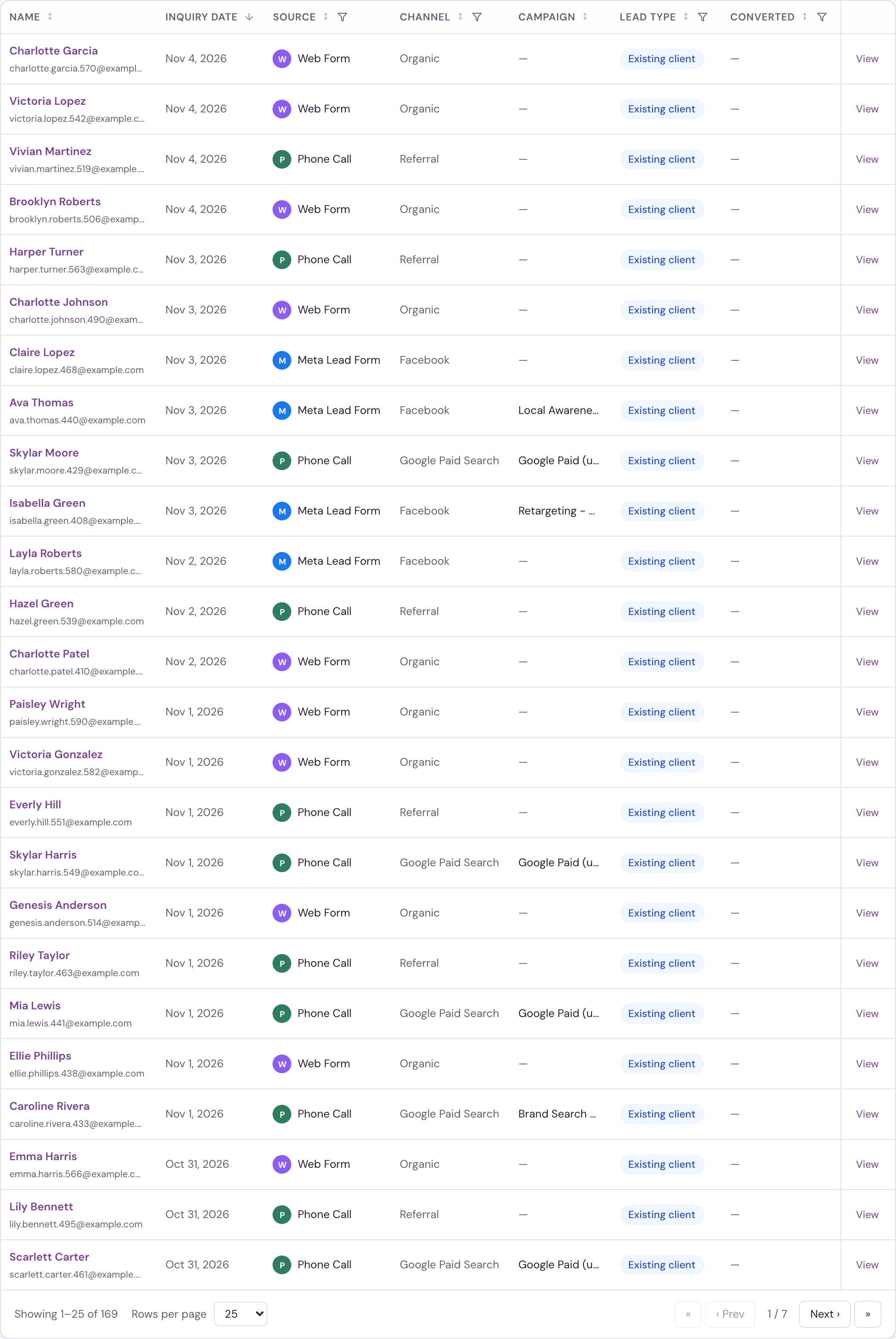
| Column | What it shows |
|---|---|
| Source | How the inquiry arrived: Phone Call (a tracked call, whichever call-tracking service your salon uses), Web Form, or Meta Lead Form. Online bookings are not inquiries and are listed in their own view — see Online bookings. |
| Channel | The marketing attribution: Google Paid, Facebook / Instagram, Organic, Direct, and so on. A web form fill (Source) can be a Google Paid lead (Channel) — the two are deliberately separate columns. |
| Campaign / Ad | Which campaign and ad the inquiry came from, with the ad nested under its campaign. When a source only reports a numeric ad id, it's shown as a muted #id so it's never mistaken for a real campaign name. |
| Status (CRM add-on only) | Where the lead sits in your follow-up pipeline (New Lead, Contacted, Qualified, Appointment Booked, Converted, Lost). This is your team's follow-up status. The separate Converted column below is the visit-based measurement used by Marketing Health. Inquiries that aren't in the pipeline — existing clients, or inquiries outside its window — carry a Not on board label instead of a misleading badge. |
| Step (CRM add-on only) | The step of your nurture plan the lead is currently on. |
| Lead Type | New, Win-back, Repeat, Existing client, or Not yet classified — see below. |
| Converted | Whether this lead became a client. Hover the badge to see the client's lifetime collections. |
| Inquiry | When the inquiry arrived. |
| Last Contact | The most recent logged touch. The column is left out when no lead in the date range has one. |
Every column sorts; filterable columns have a small funnel in their header — click it to pick one or more values (for example Source: Meta Lead Form and Phone Call). Applied filters show as removable chips above the table, with Clear all to reset. The CSV export always includes every column, including Status, whether or not your salon has the CRM add-on, and regardless of what's currently shown on screen.
The table shows 25 rows per page. Use Rows per page at the bottom of the table to show 50, 100 or 250 instead; your choice is remembered the next time you open the page in this browser.
Online bookings
An appointment a guest books themselves on your online booking site is not a lead, so it has its own view. When the date range has any, a switch above the table reads Leads | Online bookings, with a count on each side. Leads is shown first; click Online bookings, or the Online Bookings tile, to see them. The page remembers which view you last used.
The Online bookings view lists one row per booking:
| Column | What it shows |
|---|---|
| Guest | The guest's name and email. A guest booking for the first time may show as Guest and a number on the day they book. |
| Service and Stylist | What was booked, and with whom. |
| Appointment | The date and time of the appointment. |
| Booked On | The day the guest made the booking. |
| Status | Booked, Waitlist (a request for a time that was not open) or Cancelled (the guest cancelled it online afterwards). Filter by it from the column header. |
| First Visit | Whether this is the guest's first visit to the salon. |
Search works in either view. Export CSV exports the view you are looking at, so the bookings export is a separate file. View on a booking shows the same details plus the guest's phone.
Total Leads, New Leads, Conversion Rate and the charts never include bookings. The Online Bookings tile counts them on their own: booked and waitlist rows, but not cancelled ones.
Lead Type
Every inquiry gets a single at-a-glance label:
- New — a brand-new lead, first time reaching out.
- Win-back — a former client who had lapsed (no visit in 6+ months) and is reaching back out. Only their first inquiry of the return is a Win-back; later ones are Repeat.
- Repeat — another inquiry from someone who already contacted you.
- Existing client — an active client who was already coming in. These are recorded for reporting but kept out of the follow-up pipeline, and they're excluded from conversion metrics — a returning regular shouldn't inflate your marketing numbers.
- Not yet classified — an inquiry from the last day or two that hasn't been sorted into one of the types above. It gets its type by the next morning.
New and Win-back together are the leads Marketing Health counts as New Leads, so filtering the table to those two types gives the same number as the New Leads tile for the same dates. Every inquiry has exactly one type, and the types are decided with every inquiry read in the order it happened, so two inquiries from the same person are labelled correctly whichever reached the system first.
Converted
A lead counts as ConvertedA lead counts as converted once they've had a completed, non-cancelled visit after their inquiry — a booking alone doesn't count.Full definition → once they've had a completed, non-cancelled visit after their inquiry — any checkout counts, including a $0 membership or redemption visit, but a booking alone does not. The full definition, including why it's visit-based rather than revenue-based, is in Converted leads.
The three most useful filters when reviewing a period: Lead Type: New (how many genuinely new prospects did we get?), Converted: No with an old date range (who slipped through?), and Channel (which marketing is actually producing?).
Salons that share advertising
Some salons advertise together. When the salon you have selected is one of them, this page shows the group combined: ad spend, leads, sales and results for all of the salons together, and the table gains a Salon column so each lead or booking shows which salon it came to. A note at the top of the page names the salons. Choosing any salon in the group shows the same combined page.
The Lead Manager appears once Marketing Analytics is turned on for your salon. It's available to corporate and admin users and to staff with the Marketing Dashboard Access permission in their staff settings. The Status and Step columns, the Status filter, and the By Status chart additionally require the CRM add-on.