Package Performance
The Package Performance report shows what packages sold for a date range — as a per-salon summary, or client by client in a Detail view. It lives in Salon Reports → Legacy, open to corporate/admin users and to anyone with reporting access.
Packages here are prepaid bundles of sessions/credits, separate from memberships.
Package Performance covers The Lash Lounge locations only. It isn't available for Bishops or Frenchies.
 1234
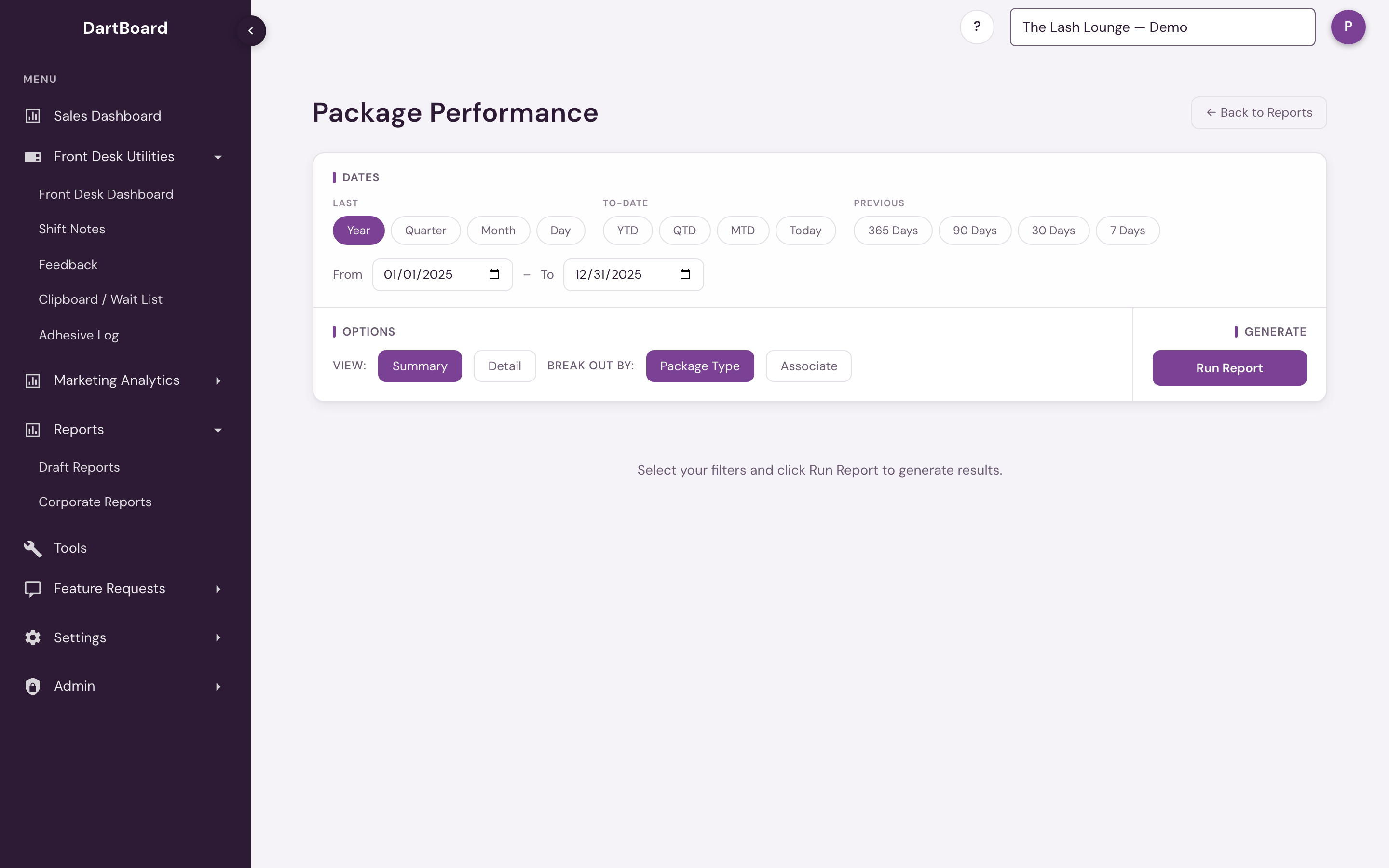
The screenshots on this page show the report before it's run — pick your date range and view, then click Run Report to see results.
Running the report
Pick a date range and click Run Report. The range defaults to the last full calendar year. The View toggle in Options switches between Summary and Detail — switching views doesn't re-run automatically; click Run Report again after changing it.
Next to it sits Break out by: Package Type (the default) or Associate. It applies to whichever view you're in, and like the View toggle it takes effect on the next Run Report.
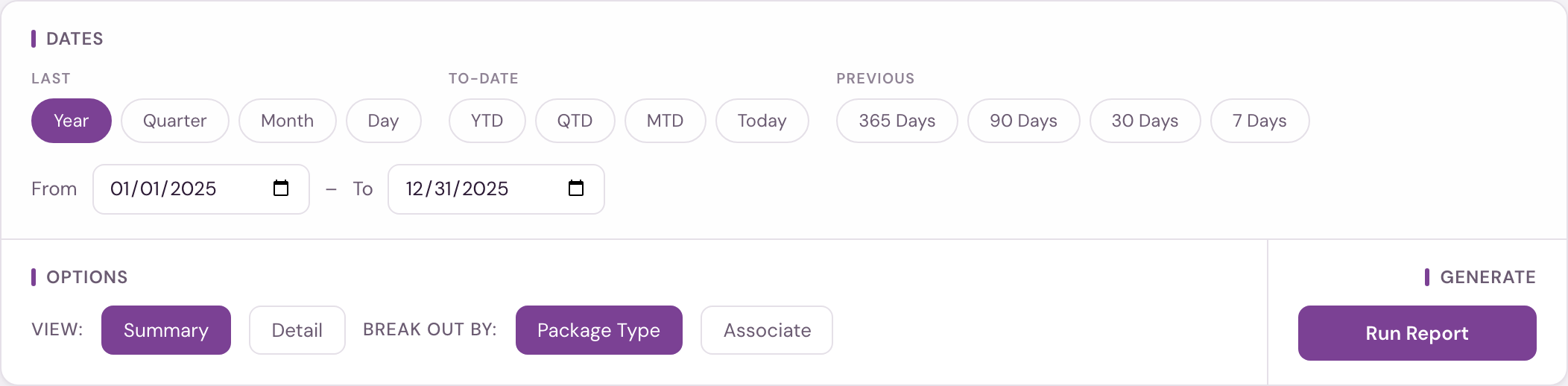
Summary view
One row per salon and package type: Package Sales $ and count for the range, plus:
- Credits Purchased — total package credits sold in the period. Only credits that belong to the package itself count; add-ons or upcharges rung up on the same sale are not included.
- Credits Remaining — how many of those credits are still unused today. This is a live balance — it reflects the current state now, not what was left at the end of the date range you picked.
- Packages Refunded — whole packages refunded to the guest's card or in cash during the range.
- Credits Refunded — package credits refunded to a card or in cash during the range, whether or not they add up to a whole package.
- Credits Traded In — package credits a guest swapped for credit on their account during the range.
Package Sales $ is the money that came in for the package: the part of its discounted price paid by card, cash or bank payment, before tax and tips. It is counted when the package is sold, not when its credits are later used (see how salon360 counts collections). A refund reduces the month it was processed, as a negative amount, and the original sale stays in the month it was sold, so a closed month does not change later. The package count is one per purchase ticket, no matter how many credits that package includes, less the Packages Refunded in the range.
How the package was paid for
What a package adds to the report depends on what paid for it:
| Paid with | Counts as a package | Adds to Package Sales $ |
|---|---|---|
| Card, cash or bank payment | Yes | Yes |
| Gift card | Yes | No. That money was counted when the gift card was sold. |
| Account credit, or a complimentary or trade payment | No | No |
A package paid entirely with account credit doesn't appear in the report at all, including its credits and its row in the Detail view. Account credit usually comes from package credits a guest traded in, so counting the package it buys would count the same money twice.
When a payment is split, Package Sales $ is the part paid by card or cash, and the package counts as long as some of it was paid by card, cash or gift card.
Refunds and trade-ins
A guest can give package credits back in two ways, and the report treats them differently because only one of them takes money out of the salon:
- A refund sends the money back to the guest's card, or out as cash. Its value comes off Package Sales $ in the month it was processed and it counts in Credits Refunded.
- A trade-in turns the credit into credit on the guest's account, to spend on something else. The money stays in the salon, so Package Sales $ and the package count don't change. It counts in Credits Traded In.
If a return is split between a card and the guest's account, only the part that went back to the card comes off Package Sales $.
A package is a bundle of credits, and a refund can be for one credit or all of them:
- A refunded credit lowers Package Sales $ by the price of that credit. The package count doesn't change. The guest still bought the package.
- A refunded package is a guest getting money back for every credit in a package during the range. A Buy 3, Get 1 Free package holds four credits, so four refunded credits of that package type for the same guest make one refunded package. That counts in Packages Refunded and comes off Packages.
Refunds are counted in the range they were processed, and a guest's refunded credits are added up within the range you ran. A guest refunded two credits in one month and two the next shows two refunded credits in each month, and one refunded package when you run both months together.
Refunded and traded-in credits both come off Credits Remaining, since the guest no longer holds them.
A row can show refunds or trade-ins with no sales. That means the location processed them for that package type during the range without selling any. With refunds, its Package Sales $ for that row is negative.
Only service packages are counted. Retail kits — Aftercare Kit, New Member Kit and the like — are set up as packages in the point of sale, but they are products, not prepaid service credits, so this report leaves them out.
Together the credit columns show not just what sold, but how much value clients are still holding — outstanding package liability, and a built-in rebooking opportunity.
Both views cover the locations you have access to: every Lash Lounge location for corporate and admin users, and your own salons for a salon user.
An instant Package Type filter sits on the totals line, so you can narrow the loaded results without re-running the report — it applies immediately, no click needed.
The KPI cards above the table show Package Sales and Packages Sold for whatever is currently loaded (they update live with the Package Type filter). The standard CSV export button captures whatever is on screen.
Who sold it
Set Break out by to Associate and each package type splits into one row per team member, with that person's package count and sales — so a location's rows read location, then package type, then the people who sold it. The totals don't change; the same sales are simply divided up.
The name is whoever rang the sale at the point of sale, shown exactly as it appears there — which is usually a name plus a role, like Jamie R. | Front Desk. Packages sold with no one recorded on the ticket are grouped under Unassigned.
One thing to know about Credits Remaining in this view: when a client is refunded or trades credits in, those credits come off the person who processed that return, not the person who originally sold the package. If those are different people, a location's Credits Remaining can add up to slightly more here than on the Package Type view. Package Sales $, package counts and Credits Purchased match exactly.
Detail view
Flip the Summary / Detail toggle in Options and each row becomes one client's purchases of a package type over the range (repeat buyers roll up into a single row; Package Sales $ and the credit columns sum across all of that client's purchases):
| Column | What it shows |
|---|---|
| Location | The salon the package was sold at. |
| Guest Name | The client who bought it. |
| Guest ID | The client's guest ID. |
| Package Type | The package sold. |
| Sold By | Only when Break out by is set to Associate — the team member who rang the sale. |
| Package Sales $ | The same figure as Package Sales $ in the Summary view, per client: what this client paid by card or cash for this package type over the range — the discounted package price, before tax and tips. A package paid with a gift card shows $0 here; see how the package was paid for. A refund processed in the range shows as a negative amount, so a client who was only refunded in the range shows a negative Package Sales $. A trade-in doesn't change it. |
| Credits | Total package credits purchased. |
| Remaining | Credits still unused today (a live balance, like the Summary view's Credits Remaining). |
| Refunded | Credits refunded to this client's card or in cash during the range. See refunds and trade-ins. |
| Traded In | Credits this client swapped for credit on their account during the range. |
| Last Sold | The most recent purchase date counted in this row. |
Break out by works here too. Set it to Associate and a guest who bought the same package from two different team members appears on two rows — one for each — instead of a single combined row. That's the point of it: it answers who sold to this guest, so her purchases can't stay merged. The report's totals don't change either way.
Because Detail includes guest names, it only shows packages from your allowed sites.
Detail has its own Location filter and Package Type filter — both are staged: changing them doesn't fetch anything until you click Run Report again. The KPI cards show Package Sales and Packages Sold for the filtered set; Packages is purchases less whole packages refunded, the same count the Summary view uses. Large ranges load 100 rows at a time (page with Previous / Next); the download button prepares a CSV of every row matching your current filters, not just the visible page — it can take a moment to prepare for large exports.
Printing it
The print button next to the download button prints the report as it stands — every row and column, the totals, and the report's name and date range at the top. Wide runs (especially Break out by Associate) print best in landscape; choose that in your browser's print dialog.
Available on the Salon Reports page (Legacy section) to corporate/admin users and to anyone with reporting access. Both the summary and the Detail view cover only the locations you have access to — corporate and admin users see the whole system, a location user sees their own salons.