Call to Rebook
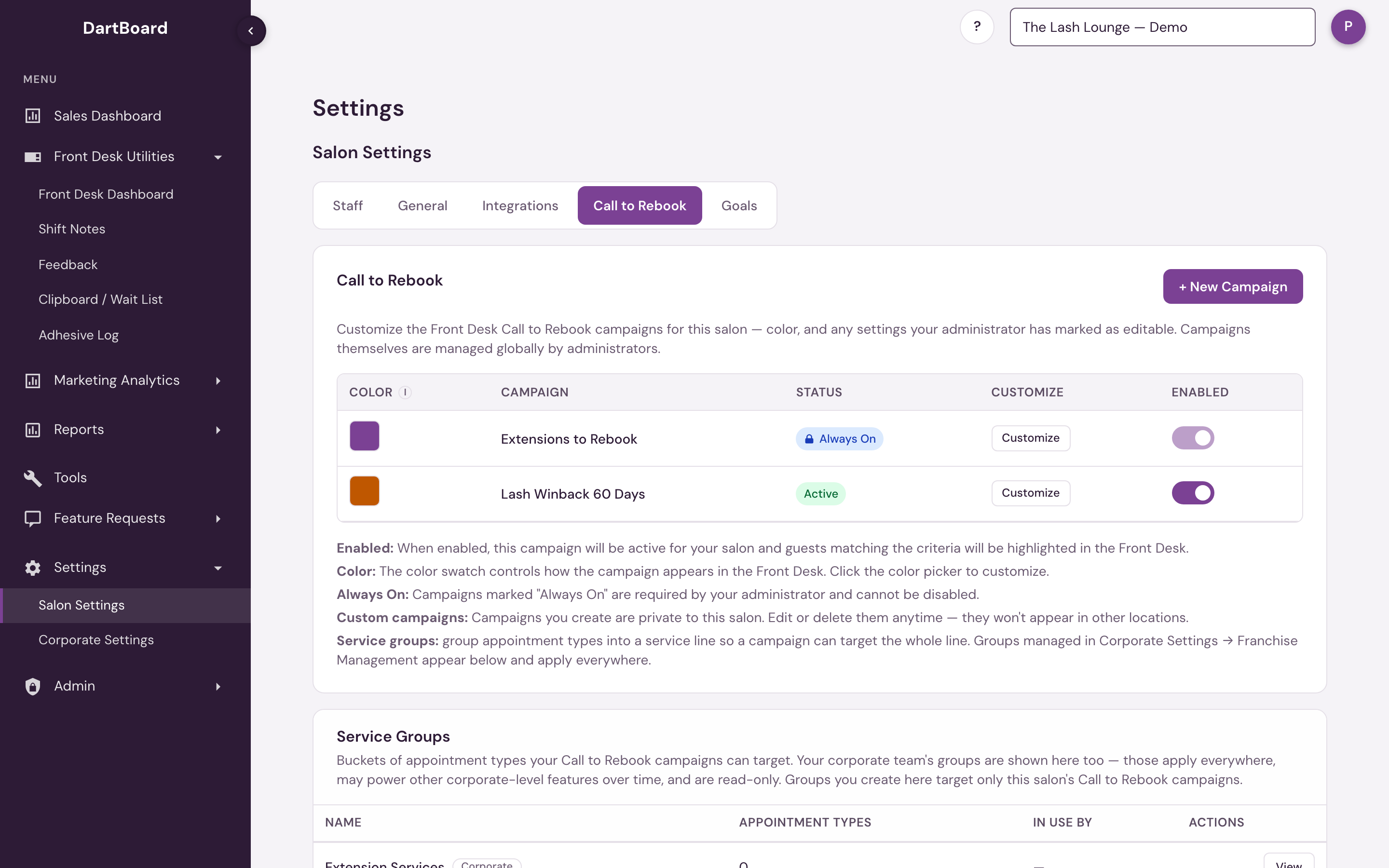
The Call to Rebook tab (Settings → Salon Settings → Call to Rebook) is where a salon customizes the rebooking campaigns that highlight guests in the front desk — color, and whichever fields your administrator has marked as salon-editable. The campaigns themselves (their name, matching criteria, and whether they exist at all) are managed globally by administrators.
This page only configures which campaigns run and how they're styled. The day-to-day call list — POS Notes, logging each call's outcome, and the Text action — lives on the Front Desk Dashboard's Call to Rebook section.
 123
The campaigns table

| Column | What it shows |
|---|---|
| Color | Click the swatch to change the color the campaign appears as in the Front Desk. Custom campaigns are colored from their Edit drawer instead. |
| Campaign | The campaign's name. Custom campaigns carry a Custom badge. |
| Status | Active, Inactive, or Always On (see below). |
| Customize | Customize opens a drawer for any fields your administrator marked salon-editable; otherwise a Locked label shows, with a note to contact your administrator. Custom campaigns show Edit and a delete icon instead. |
| Enabled | A toggle switch — see below. |
Enabling, color, and Always On
- Enabled — when on, the campaign is active for your salon, and guests matching its criteria are highlighted in the Front Desk.
- Color — controls how the campaign appears in the Front Desk.
- Always On — campaigns marked Always On are required by your corporate team and can't be disabled. Corporate admins manage these campaigns (and which fields each salon may customize) under Corporate Settings → Franchise Management → Rebook Campaigns & Service Groups.
An admin-managed campaign that's currently inactive shows its Enabled toggle disabled too, with a tooltip to contact your administrator.
Adding services to a corporate campaign
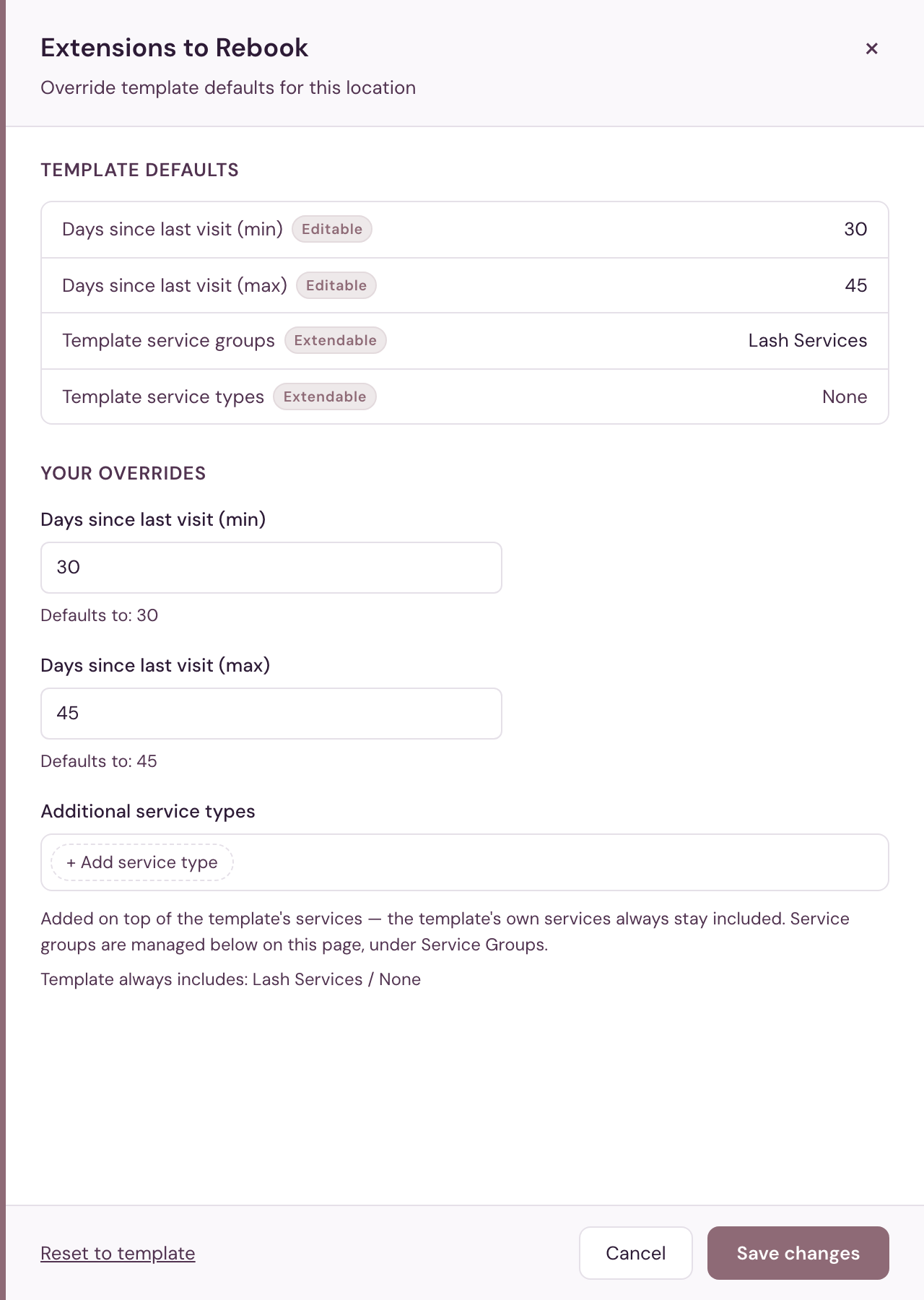
Corporate campaigns come with a fixed set of services from your administrator, but your location may sell services the template doesn't know about — a new lash program, a promotional refill type, a lift-and-tint bundle. When your administrator has allowed it, Customize shows an Additional service types picker: choose any of your service groups or individual appointment types, and guests who had those services in the campaign's window are highlighted alongside the template's own.
Additions only ever widen a campaign. The template's services stay included no matter what you add (the drawer lists them under Template always includes), and Clear additions puts the campaign back to exactly what corporate configured. Additions are private to your location.
To add several related appointment types at once, first make a service group for them, then add the group to the campaign.
Note tags
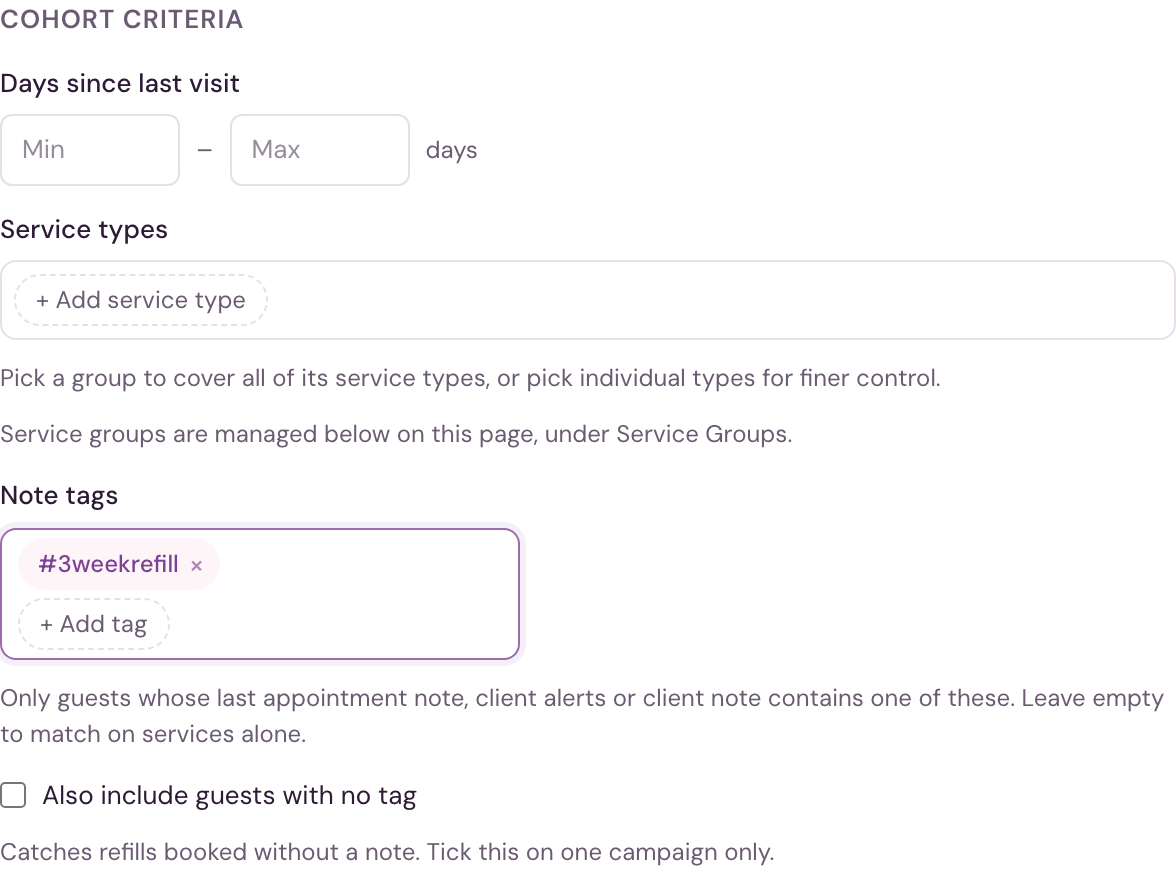
Some rebooking cadences can't be told apart by service alone — for example, a 3-week and a 4-week refill that book the same appointment type. For cases like that, a campaign can also match on a note tag: a short piece of text the front desk types into a note in your booking system (for example, #3weekrefill). The tag can go in any of these places:
- The appointment note, when the appointment is made. It applies to that visit.
- The client's red alert or yellow alert, on their profile. Type it once and it applies to every visit. At Bishops shops and Frenchies studios, an alert set on the guest in Zenoti.
- The client's note, on their profile. Type it once and it applies to every visit.
When your administrator has added Note tags to a campaign (or allowed your salon to set your own), the campaign only matches guests whose note contains one of the listed tags — matching is case-insensitive and matches anywhere in the note, not just an exact match.
When a guest has tags in more than one place, one of them decides, in this order:
- The appointment note on the guest's most recent completed visit
- The red alert
- The yellow alert
- The client's note
So a guest whose client note says #4weekrefill but whose last appointment was noted #3weekrefill is treated as a 3-week guest. This is the same order POS Notes uses on the Front Desk Dashboard.
In an alert, keep the tag within the first 200 characters. Text past that point is not read.
At Bishops shops and Frenchies studios the order is the appointment note, then the guest's alerts, then the notes on the guest's profile. Notes marked private in Zenoti are read too.
To add a tag, type it in the Note tags field and click + Add tag, or press Enter. A tag you've typed is also added when you move to another field or click Save changes. Click the × on a tag to remove it.
Leave the tag list empty and the campaign matches on services alone.
Check Also include guests with no tag to also catch guests with no tag in any of those places — useful for refills booked without a note. Turn this on for one campaign only per salon; if it's checked on more than one campaign that shares the same services, untagged guests will show up in every one of them.
Note tags only work for appointments booked after this feature went live — tags typed into notes on older bookings aren't read retroactively, so expect more untagged guests than tagged ones for the first few weeks.
Custom campaigns
Click + New Campaign to create a campaign of your own. Custom campaigns are private to your salon — they won't appear at other locations. From the table you can Edit or delete them at any time; deleting asks for confirmation and can't be undone.
Service groups
A service group is a named bucket of appointment types — like an "Extension Services" group covering every extension-related appointment type — so a Call to Rebook campaign can target the whole group instead of picking individual appointment types one by one.
Below the campaigns table, this page shows two kinds of groups:
- Groups from your corporate team appear here too, read-only. They're managed in Corporate Settings → Franchise Management and apply to every location in the system, so their name and contents can't be changed here. Corporate groups may also power other corporate-level features over time; your own groups below target only this location's Call to Rebook campaigns.
- Groups you create are private to this location and available to your campaigns immediately.
Click Add service group to create one: give it a name, then check off which appointment types belong to it. The appointment-type list is this location's own menu, not the whole system's.
Deleting a group that's still targeted by one or more campaigns shows which campaigns reference it before you confirm — deleting anyway removes the group from their targeting, but the campaigns themselves keep running.
Service groups are rolling out by booking system — if your location's booking system isn't supported yet, the tool explains that and there's nothing for you to do; it turns on automatically once your system is ready.
The Call to Rebook tab, including Service groups, is available to salon admins (the Salon Admin permission) and to corporate/platform-admin users.