Corporate Settings
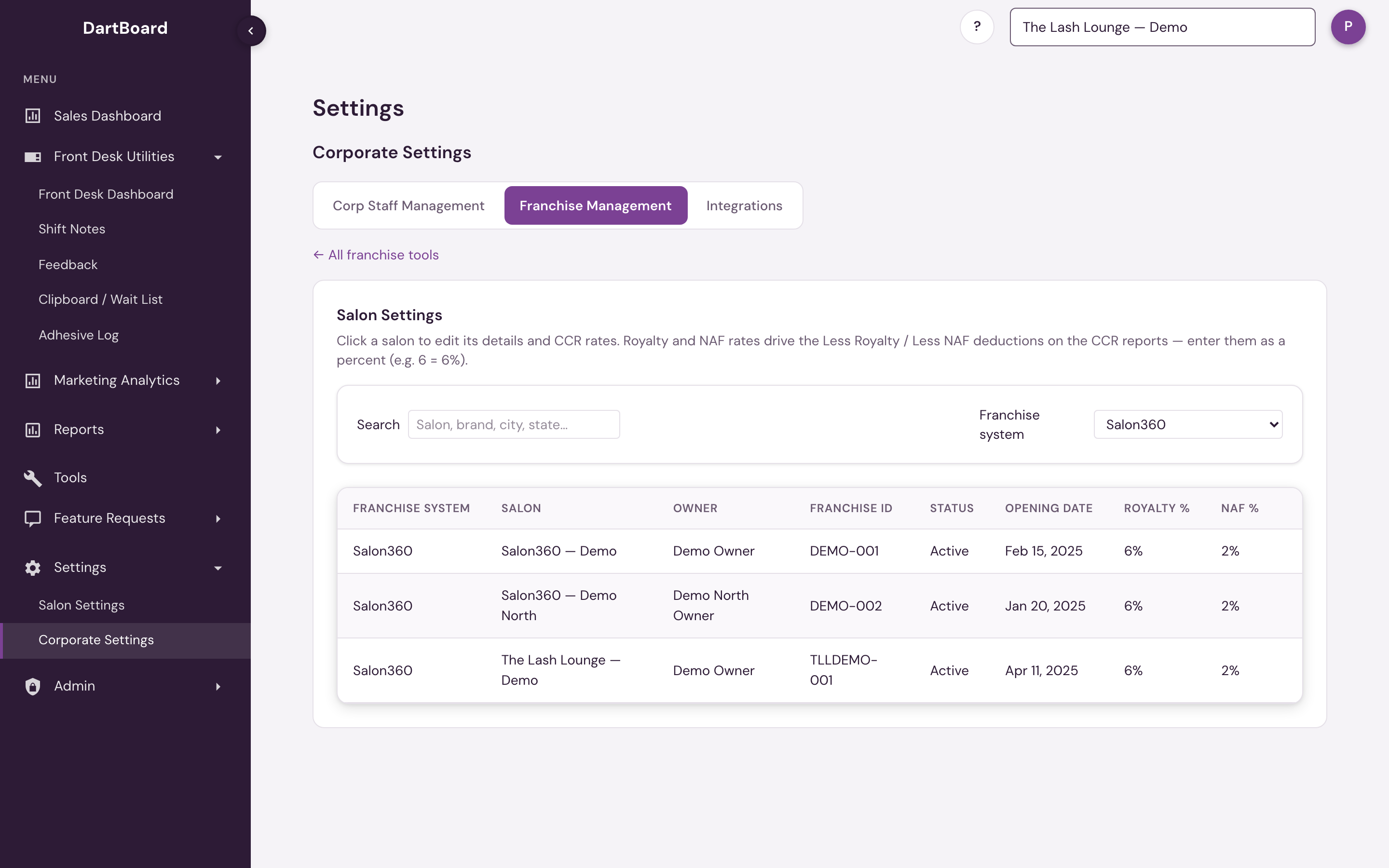
Corporate Settings (Settings → Corporate Settings) is the corporate-level counterpart to Salon Settings — configuration that spans every salon in a franchise system rather than just one. It has three tabs; Franchise Management is open to every corporate team member, but most of its tools require corporate admin access (see the access box at the bottom of this page).
 123
Corp Staff Management
Manage corporate-level user accounts, scoped to your franchise system. The list groups rows by person (one card per email), showing their job title, contact info, and a badge for each franchise system they're assigned to — badges carry an Admin marker when that person has corp admin rights on that system.
Click Add corporate staff to create a new corporate user: assign them to one or more franchise systems, and choose whether they get corp admin rights on each. Click an existing person to edit the same fields.
Roles
Every person you add has one role:
- Corporate staff — full corporate access to the franchise systems they're assigned to. Turn on Corp Admin per system to also let them manage other corporate staff and the corp-admin tools.
- PE Group — for investors and private-equity groups. A PE Group user signs in to the Corporate Dashboard for the systems you assign and sees nothing else: no reports, no settings, no salon pages. They show a PE Group marker on their system badges.
PE Group is a person's only role, so it needs an email address that isn't used by any staff login, and it can't be combined with corporate staff access on another system. The same is true of a marketing partner login, which is not listed here: partner logins are created and removed in Franchise Management › Marketing Partners. The Marketing partner logins box at the top of this tab links there (Add or see partner logins), and the Add corporate staff form points a marketing agency there too, so an agency is never added as corporate staff by mistake. The role is chosen when you add the person; to change it, delete them and add them again.
There's no screenshot for this tab — it manages other people's accounts, so it's kept out of the documentation's screenshots by design. The workflow is the same shape as Managing users, just for corporate staff instead of salon staff.
Franchise Management
Assign Franchise Business Coaches (FBCs) and Franchise Area Coaches (FACs) to the salons they cover, manage the per-franchise-system System Budget and Rebook Campaigns & Service Groups, edit each salon's details and CCR rates under Salon Settings, map multi-unit owners under Multi-Unit Owners, and record each salon's marketing partner and region under Marketing Partners. The tab opens on a menu of those seven tools. Covered in full, with its own screenshot, at Franchise Management.
Integrations
Fleet-wide connection health across every salon — the status strip, the Meta Lead Ads rollup, alert recipients (fleet-wide and per connected page), and the page-mapping workbench. Covered in full at Corporate Integrations.
A salon's own call- and form-tracking connections and email sender settings stay on the per-location Integrations page under Salon Settings — this tab has no per-location content.
Salon Settings
Salon Settings is its own tool inside Franchise Management — see Salon Settings.
Corp Staff Management requires corporate admin access (or platform admin). Franchise Management opens for any corporate team member, and any corporate team member can use Marketing Partners and view Rebook Campaigns & Service Groups; its other tools require corporate admin.