Franchise Management
Franchise Management (under Settings → Corporate Settings) is where corporate admins manage Franchise Business Coaches (FBCs), Franchise Area Coaches (FACs), and the per-franchise-system System Budget. Coach coverage is managed in one place, so names stay consistent everywhere they appear.
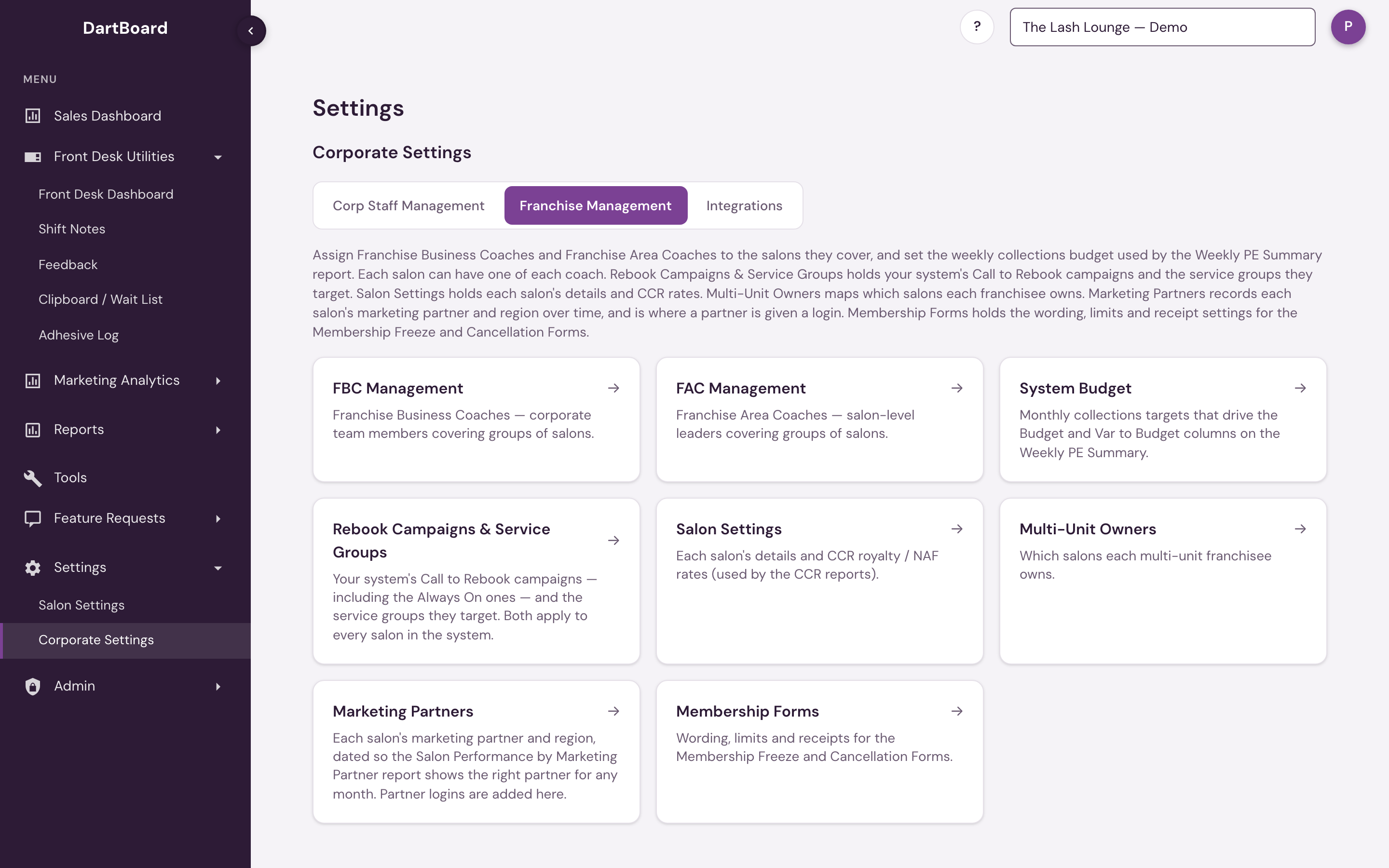
The tab opens on a menu of seven tools. Pick one to work in it — coach names, contact details, budget figures, campaigns and service groups aren't on screen until you open the tool that holds them. ← All franchise tools returns to the menu, and each tool has its own address, so you can bookmark or share a link straight to it.
 16
The tools
- FBC Management — Franchise Business Coaches, typically corporate team members covering groups of salons.
- FAC Management — Franchise Area Coaches, salon-level leaders covering groups of salons.
- System Budget — the monthly collections target per franchise system (see below).
- Rebook Campaigns & Service Groups — your system's Call to Rebook campaigns, including the Always On ones, and the buckets of appointment types they target. Both apply to every salon in the system (see Rebook campaigns and Service groups below).
- Salon Settings — each salon's details and CCR royalty / NAF rates (see below).
- Multi-Unit Owners — which salons each franchisee owns — see its own guide, Multi-Unit Owners.
- Marketing Partners — each salon's marketing partner and region, dated so the Salon Performance by Marketing Partner report shows the right partner for any month (see below).
FBC Management, FAC Management, System Budget, Salon Settings, and Multi-Unit Owners are available to corporate admins and platform admins. Marketing Partners is open to every corporate team member, with full editing. Rebook Campaigns & Service Groups is also open to corporate team members without admin access — they can view the campaigns and groups, but editing still needs corporate admin (see below). If you have access to more than one franchise system, a Franchise system dropdown at the top of each tool switches which system's coaches, salons, budget, campaigns and service groups are shown; Salon Settings has its own franchise-system filter instead.

Each coach's row shows their name, where they came from (see below), their email, and a coverage summary (e.g. "5 salons · TX, LA"). Up to four covered salons are listed inline, with a "+N more" for the rest.
Adding or editing a coach
Click Add FBC or Add FAC to open the editor (the same editor opens with Edit on an existing coach). It has two parts:
- Person — for an FBC, pick from your corporate staff; for an FAC, browse a chosen salon's staff list. Both pickers are type-to-search: start typing a salon or person's name to filter the list. Either way you can also switch to manual entry and type a name/email directly instead. Editing an existing coach shows where they came from as a badge: Corp Staff, Salon Staff, or Manual.
- Assigned Salons — a searchable, checkable list of the franchise system's active salons. The count of currently-selected salons is shown alongside the list.
Click Save to apply. Remove deletes a coach entirely and unassigns their salons — this can't be undone.
Replacing a coach
When a coach leaves and someone else takes over their territory, use Replace (shown next to Edit for any coach who currently covers salons):
- Pick the successor the same way you would when adding a coach — corporate staff for an FBC, a salon's staff list for an FAC, or manual entry.
- Review the transfer summary: every salon the departing coach covers will move to the successor, and the departing coach's record will be removed.
- Click Replace Coach. The transfer is a single all-or-nothing step.
If the person you pick is already an FBC/FAC in the same system, you'll be offered a one-click transfer to their existing record instead of creating a duplicate.
Reassigning a salon
One of each per salon. A salon has exactly one FBC and one FAC. If you check a salon that's already covered by a different coach of the same type, it shows a "Currently: <name>" badge inline. Saving then shows a confirmation step listing exactly which salons will move and from whom, with a Confirm & Save button — coverage can never silently overlap.
Unassigned salons
Each tool also flags salons in the current franchise system that don't have a coach yet, behind a "N salons without a <type>" disclosure you can expand to see the list by name.
System Budget
The third tool, System Budget, shows a franchise system's collections targets one month at a time, a calendar year per page. Corporate admins manage it here; platform-admin access isn't needed. It shows one franchise system at a time, following the Franchise system selector above it.
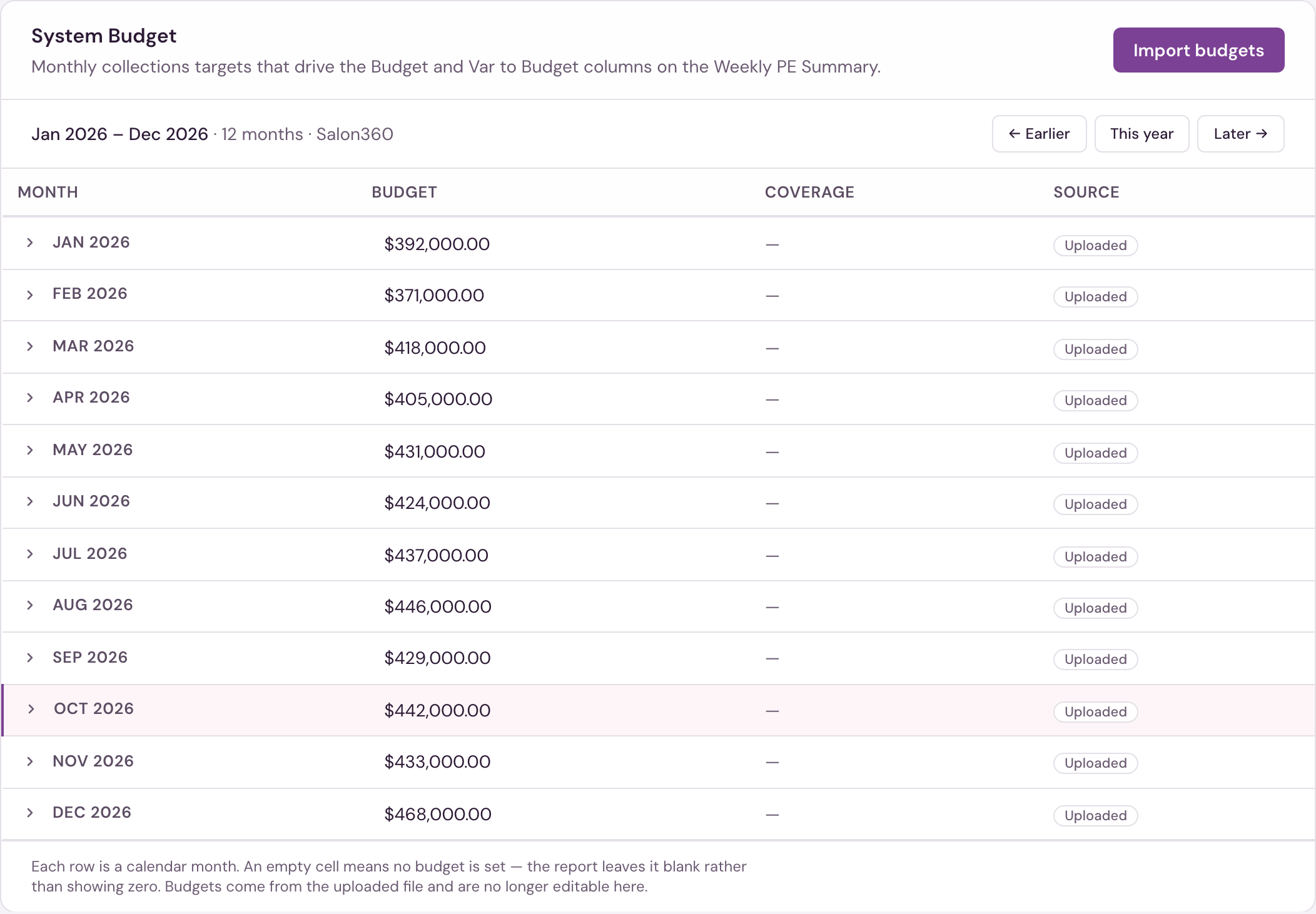
The grid has one row per calendar month, January through December, with ← Earlier / Later → paging a year at a time and This year jumping back to the current one. The month figure is the number authored in the budget workbook — budgets are entered per month there, so nothing is prorated or averaged. Two more columns: Coverage (shown only when part of a month has no budget — for example a hand-entered fragment from before workbook imports) and Source (Uploaded, or Mixed where a month draws on more than one import, with the sheet name on hover).
The Weekly PE Summary still compares budget for any date range you pick — it sums the underlying daily budget exactly, so a week or a partial month there always ties back to these monthly figures.
Some months have a toggle next to the name. Those are months budgeted location by location — expand the row to see the per-location breakdown for that month. Months budgeted at the franchise-system level as a single figure have no toggle, because there is nothing to break down.
Setting budgets
Budgets are set by importing a workbook — there is no typing in the grid. The figures on this page are read-only, and importing is the only way to change them.
Pick your .xlsx budget workbook to start. It does not need to be reshaped first — the import reads the workbook in whatever layout it was actually built in, through a four-step flow:
- Upload — choose the file.
- Sheet — pick the tab from a list of the workbook's real tab names.
- Confirm — check which columns hold the figures and which row is the system total. Both come pre-filled with a best guess, but you always confirm rather than having it assumed for you.
- Review — a preview of exactly what would change, with new months, changed amounts and unchanged rows called out separately.
Nothing is written until you click Apply. The preview is a dry run, so you can back out at any point up to that click and your existing budget is untouched. A re-import overwrites what is already there, which is how you correct a bad import — the review step is where you confirm that is what you want.
A large workbook can take up to a minute to preview or apply; the dialog shows progress while it works.
Budgets set here feed the Budget and Var to Budget columns on the Weekly PE Summary report.
Rebook campaigns
The fourth tool, Rebook Campaigns & Service Groups, opens on your franchise system's Call to Rebook campaigns — the campaigns every salon in the system runs from its Call to Rebook page. Campaigns marked Always On are the ones a salon can't switch off; before the September 2026 update only the platform team could change them.
Each campaign card shows its color, its days-since-last-visit window, and whether it's Always On. Edit opens the full campaign editor:
- Identity & display — the campaign's name and default color (a salon can still pick its own color).
- Cohort criteria — the days-since-last-visit window, service groups, individual service types, and minimum / maximum service counts.
- Filters & lifecycle — Active, Always On (salons cannot disable), Exclude Members, Require Membership.
- Advanced rule builder — extra conditions for who the campaign highlights. See Rule conditions below for what each one counts.
- Salon overrides — the fields each salon may tune for itself. This list is what powers a salon's Customize drawer: leave it alone and every salon keeps exactly the override rights it has today; add or remove a field and every salon's drawer changes to match.
Deactivate pauses a campaign for every salon in the system (an Always On campaign keeps showing on the Front Desk while it's deactivated — clear the Always On checkbox first if you mean to stop it).
Rule conditions
Some conditions in the Advanced rule builder look up each guest's history:
| Condition | What it counts |
|---|---|
| Lifetime spend | Everything the guest has paid at that location. |
| Spend in last 30 days / Spend in last 90 days | The same, for the last 30 or 90 days. |
| Lifetime visit count | The guest's visits at that location. |
| Visits in last 30 days / Visits in last 90 days | The same, for the last 30 or 90 days. |
| Is new client | The guest's first visit there was in the last 30 days. |
| Birthday month | The month of the birthday on the guest's record, 1 to 12. A guest with no birthday on file never matches. |
Spend counts real money on the day it was paid, the same way sales are counted on the Sales Dashboard; see collections. Services, memberships and retail products all count. Tips and card convenience fees are left out. A gift card, deposit or prepayment counts when it is bought, not again when it is spent, so a visit paid with membership or account credit, a gift card, a package or a comp adds nothing. A refund is taken off.
The minimum and maximum service counts under Cohort criteria use the same visit count as Lifetime visit count.
+ Add Campaign creates a new campaign for every salon in the system, using the same editor. It appears on each salon's Call to Rebook page straight away (unless you leave Active unchecked), and salons can tune only the fields you list under Salon overrides. Each campaign name must be unique within the system. Corporate can't delete campaigns; Deactivate one to retire it, or contact support if it needs removing entirely.
Corporate team members can view campaigns; editing needs corporate admin. A corporate team member without admin access sees every campaign and its settings, but the Edit and Deactivate controls only appear for corporate admins.
Service groups
Below the campaigns, the same tool is where corporate admins define named groups of appointment types — like an "Extension Services" group covering every extension-related appointment type — that Call to Rebook campaigns use for targeting. A group applies to every salon in the franchise system, so a campaign can target a whole service line at once instead of picking individual appointment types one by one.
Corporate team members can view Service Groups; editing needs corporate admin. A corporate team member without admin access can open this tool and see every group and its appointment types, but the Add service group button and each group's Edit/Remove controls only appear for corporate admins.
Click Add service group to open the editor: give the group a name, then check off which appointment types belong to it from the franchise system's full appointment-type list. Save to apply — the group is immediately available for campaigns across every salon in the system.
Every group in your franchise system can be renamed, edited, or deleted from here. If a group is currently targeted by a Rebook Campaign, deleting it asks you to confirm first, and renaming it updates every campaign that points at it.
Each group also has its own Duplicate appointment check setting. When it's on, two different services from that group booked for the same guest are flagged on the Front Desk's Duplicate Appointments list. The same service booked twice is always flagged, whether the setting is on or off, and campaign targeting is never affected — only the duplicate-appointment check.
Deleting a group that's still targeted by one or more campaigns shows which campaigns reference it before you confirm — deleting anyway removes the group from their targeting, but the campaigns themselves keep running.
Service Groups is rolling out by booking system — if your location's booking system isn't supported yet, the tool explains that and there's nothing for you to do; it turns on automatically once your system is ready.
Individual locations can also create service groups of their own, on their Call to Rebook page — those groups are private to that location and don't appear here.
Salon Settings
Salon Settings is a searchable, filterable table of every salon you have access to, clustered by franchise system. Click any row to edit that salon's details.
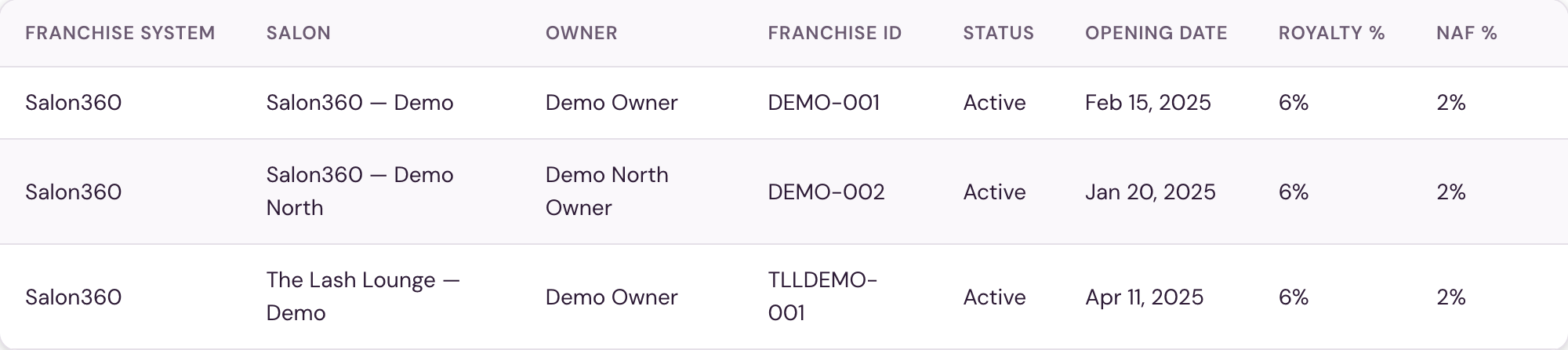
The table also shows each salon's Opening date. The edit form covers the salon's basic details (name, franchise ID, business email, owner name, phone, account status, address), a Number of Stations field, an Opening date field, Lead Alerts, and — the reason this tab exists — CCR Rates:
-
Opening date — the day the salon opened. Reports that show a salon's open date read it from here. Leaving it blank keeps the existing date.
-
Lead Alerts — tick Email new leads to the salon's business email to send the salon's own inbox the same new-lead and online booking emails that staff with New Lead Notifications (Email) receive. It goes to the business email on this form, so the salon gets lead alerts even when no staff member has the setting turned on. Off by default.
-
Royalty % and NAF % — entered as a percent (e.g.
6for 6%). These drive the Less Royalty / Less NAF deductions on the CCR reports. Leaving a rate blank keeps its existing value; enter0explicitly if a rate should be zero.
FBC and FAC assignments are managed in Franchise Management, not here — the edit form links there directly.
Marketing Partners
Marketing Partners records which marketing partner each salon works with, and its marketing region. It is also where a partner is given a login. It has two tabs over the same information: Salons lists every active salon with its partner, and Partners and logins lists every partner with its salons and its logins.
Salons tab
The table lists every active salon in the selected franchise system with its Region, the Partner currently in force, the date that assignment has been in effect Since, and any Note.
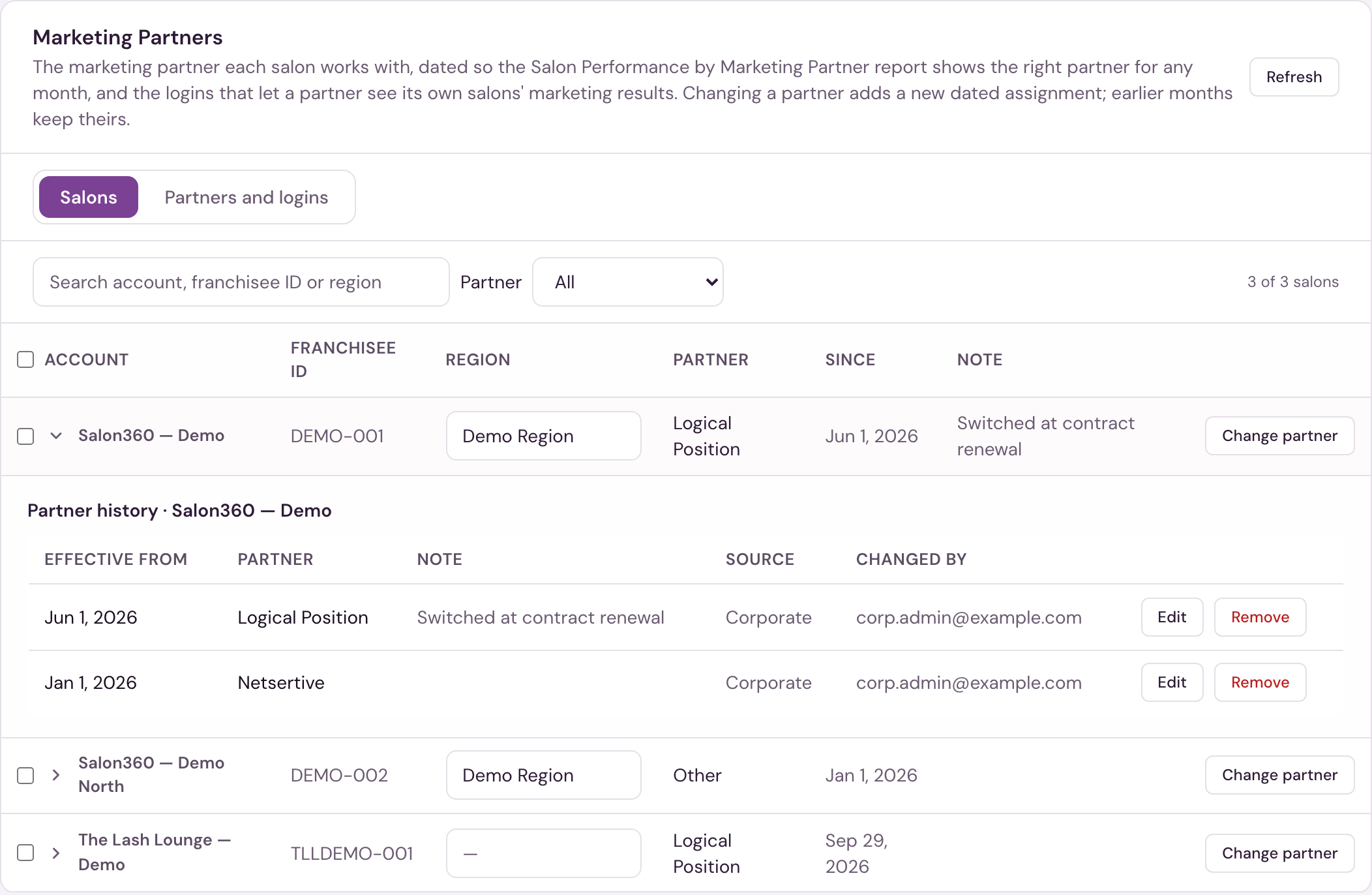
Partner assignments are dated. The Salon Performance by Marketing Partner report looks up the assignment that was in force at the end of each month, so changing a salon's partner today does not rewrite earlier months — January still reports the partner the salon had in January. The same record supplies the Marketing Partner line at the top of Marketing Health, which shows the partner in force today.
- Change partner adds a new assignment for that salon. Choose the partner from the list, set the Effective from date (it defaults to today; back-date it if the switch happened earlier), and add an optional note. Choose No partner to record that the salon has no partner from that date.
- Partners are chosen from a list rather than typed, so one partner cannot end up under two spellings. If the partner is not on the list yet, choose New partner…, enter its name and select Add partner; it is added to the list and selected.
- To change several salons at once, tick them (the box in the Account heading ticks every salon currently listed), then select Change partner for selected. One partner, date and note are applied to all of them.
- The arrow at the start of a row (or clicking the row) expands the salon's dated assignments. Edit corrects a record in place — fixing the wrong partner or a wrong start date — and Remove deletes it. Use these to correct the record, not to change the salon's partner going forward; that is what Change partner is for.
- Region is edited directly in the table and saves when you leave the field. Region is a property of the location and is not dated.
The Partner filter above the table includes a No partner option, so unassigned salons are easy to find; the header shows how many there are.
Partners and logins tab
The Partners and logins tab lists each marketing partner in the selected franchise system with the number of active salons assigned to it today and its Logins. The arrow at the start of a row (or clicking the row) expands the partner: corporate admins see its logins first, then the salons and the date each has been with the partner. A partner with more than five salons lists five, with Show all for the rest.
For a corporate admin, the Logins column is a button. It reads Add login when the partner has none yet, and opens the Add login form straight away; otherwise it shows the number of logins (for example 2 logins) and opens the partner. A category shows A group of salons, so no logins. Other corporate team members see the number of logins only, and an expanded partner tells them logins are managed by a corporate admin.
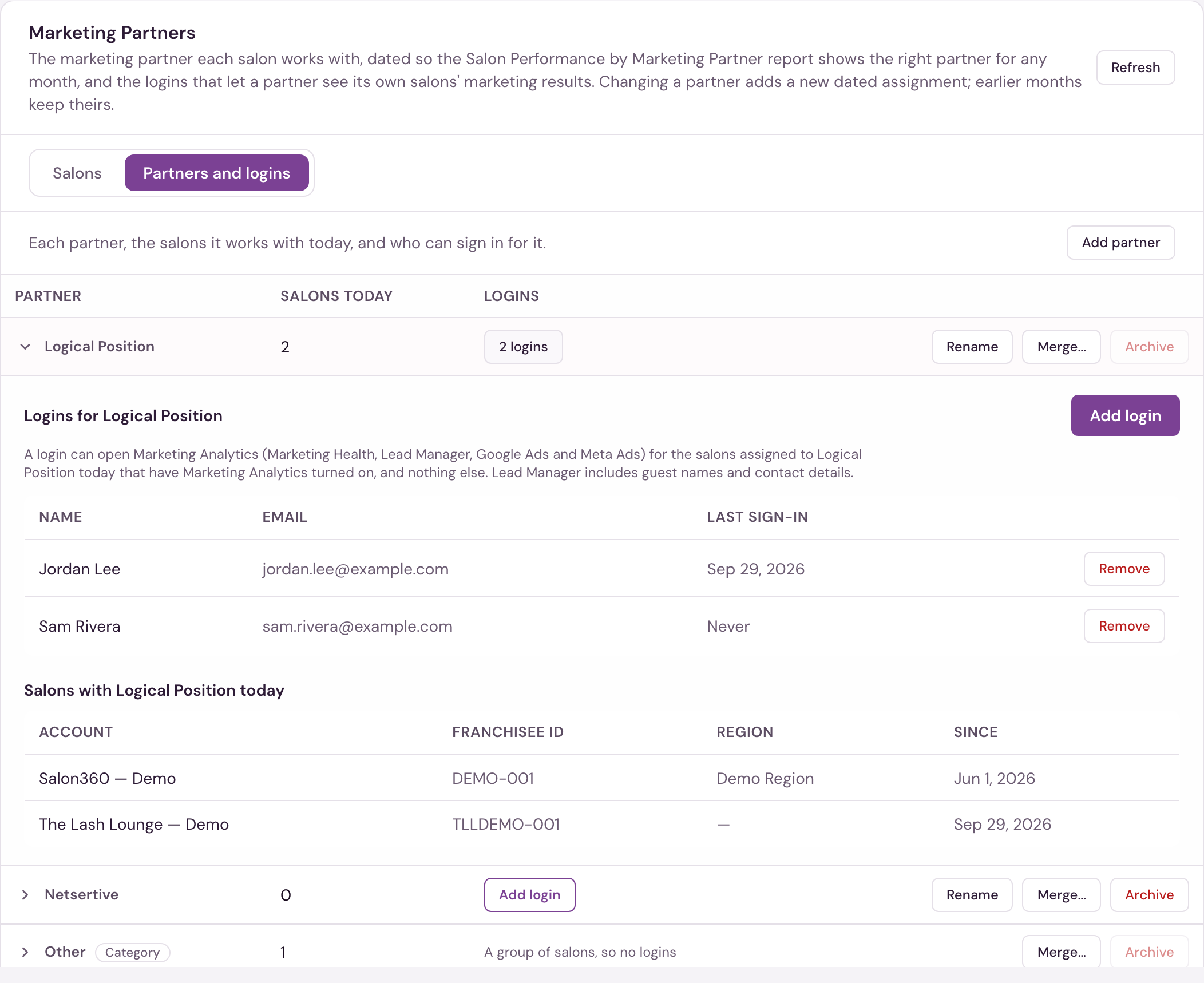
- Add partner adds a partner to the list before any salon is assigned to it.
- Rename changes a partner's name everywhere it appears, including past months on the Salon Performance by Marketing Partner report. The partner's salons and history do not change.
- Merge… moves every assignment from one partner to another and then archives the first. Use it when the same partner was entered twice, or when a group of salons should be counted under a different partner. A merge moves past months too, and restoring the archived partner later does not move its salons back. The partner's logins move with its salons.
- Archive retires a partner that no salon uses, so it is no longer offered when changing a salon's partner. Its past assignments stay on record. A partner cannot be archived while any active salon is assigned to it, while an assignment to it is dated in the future, or while it still has logins. Tick Show archived to see archived partners; Restore brings one back.
A partner marked Category — for example Other, Not Spending or Running Themselves — is a group of salons rather than a single partner. A category can be assigned to salons like any partner, but it cannot be renamed, because the Salon Performance by Marketing Partner report recognises it by name, and it cannot have logins.
Add partner and Rename are available to every corporate team member. Merge, Archive and Restore require corporate admin access (or platform admin).
Partner logins
A partner login lets someone at a marketing partner sign in and see the results for that partner's salons. Corporate admins (and platform admins) manage them on the Partners and logins tab: select Add login in a partner's row, or expand the partner to see Logins for that partner. The same page opens from Add or see partner logins on Corp Staff Management, and from the note in the Add corporate staff form.
What a partner login can see. The Marketing Analytics section — Marketing Health, Lead Manager, Google Ads and Meta Ads — for the salons assigned to the partner today that have Marketing Analytics turned on. Nothing else: no dashboards, reports, client records, settings or other salons. The salon picker lists only the partner's salons.
- Access follows the Salons tab, and nobody has to sign out for a change to take effect. An assignment dated in the future does not count until its date.
- A salon assigned to the partner appears in the salon picker the next time the person loads a page or signs in.
- A salon moved to another partner can no longer be opened from that moment. It leaves the salon picker the next time the person does anything on a marketing page, and they are moved to one of the partner's remaining salons.
- When the partner has no salons left, the person is signed out and cannot sign in again until a salon is assigned to the partner.
- Within a salon, a partner login can choose any date range, including dates from before the salon was assigned to the partner.
- Lead Manager shows guest names and contact details, and can export them. A partner login sees these for its salons.
Add login. Enter the person's full name and email. They receive an email with a temporary password and sign in at the usual address. The email must not already be used by another staff login: a partner login is a person's only role. Once it is a partner login, a salon can't add that email as staff either. The same person can have a login for a partner in another franchise system. The form spells out what the login will be able to see. If no salons are assigned to the partner yet, the form and the partner's logins both say so: the person cannot sign in until a salon is assigned. After a login is added or removed, a confirmation stays above the partner's logins until you select Dismiss.
Remove ends the person's access immediately.
Partner logins are not listed in Corp Staff Management; they are managed here, and Corp Staff Management links to this page.
Where the assignments show up
The Systemwide Data report's FBC and FAC columns read from these assignments — so what corporate reporting shows is exactly what's configured here, per salon, by name. The Partner, Region and Notes columns on Salon Performance by Marketing Partner read from Marketing Partners the same way.
FBC Management, FAC Management, System Budget, Salon Settings, and Multi-Unit Owners require corporate admin access (or platform admin), the same as Corp Staff Management. Marketing Partners is open to any corporate team member, who can view and edit it; merging, archiving and restoring partners, and managing partner logins, require corporate admin. Rebook Campaigns & Service Groups can be viewed by any corporate team member, but editing still requires corporate admin (or platform admin).