General settings
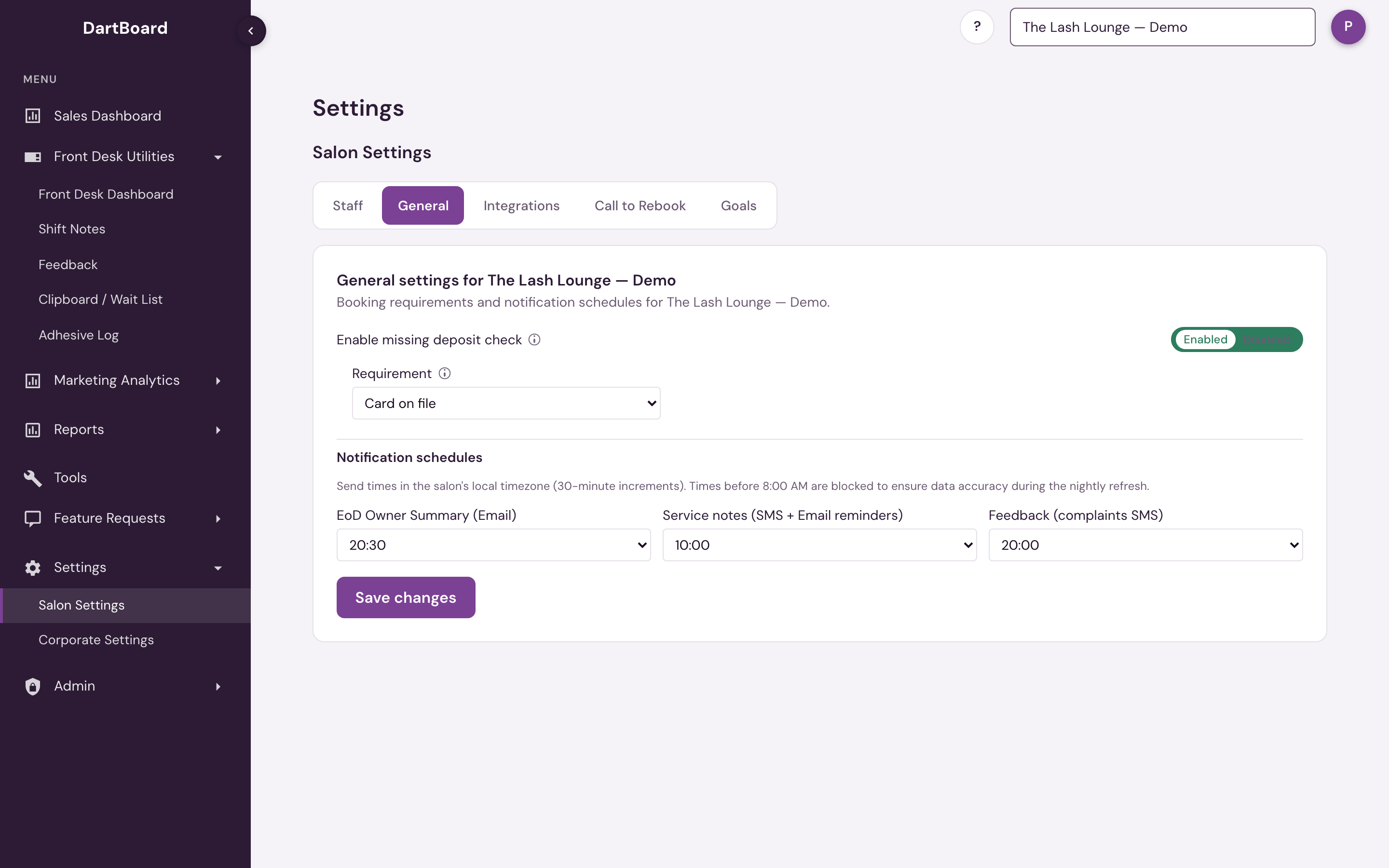
The General tab (Settings → Salon Settings → General) covers two things for your salon: whether a card or deposit is required on file for bookings, and what time of day automated notifications go out.
 12
Missing deposit / CC-on-file check
Enable missing deposit check turns on a requirement that clients have a valid card — or a deposit — on file before their appointment. Anyone who doesn't meet it shows up on the Missing Deposit section of the Front Desk dashboard.
When enabled, a Requirement dropdown appears:
- Card on file — the client needs a credit card on file with an expiration date in the future. An expired card counts as not meeting the requirement, and the dashboard says so, so you know to ask for a new one rather than a first one.
- Deposit — the client needs money on account before the appointment.
Deposit options
Choosing Deposit reveals a Deposit type:
- Flat amount — a fixed dollar figure, e.g. $50 per appointment.
- Percentage of service price — a percentage of the booked service's menu price. A 20% deposit on a $60 fill is $12; on a $300 volume set it's $60.
- Any account credit — no set figure; the client just needs a positive balance on file.
Flat and percentage both need an amount above 0. A 0 deposit would leave the check switched on while flagging nobody, so it's rejected when you save.
Applying a deposit to some services only
Applies to controls which bookings the deposit covers:
- All services — every appointment in the date range is checked.
- Selected services only — pick the services that need a deposit. This is the common setup: full sets require money down, fills don't.
Selecting services opens a searchable list of your salon's services from Mindbody. Pick at least one — an empty list means no service requires a deposit, so nothing would ever be flagged.
Services you add or rename in Mindbody show up in this list the next day. If the list is empty, your service menu hasn't come through yet — check back tomorrow.
Choosing services is available at The Lash Lounge only. At Bishops and Frenchies the deposit policy always covers all services — Applies to is locked to All services and the service picker doesn't appear.
Notification schedules
If your salon has the relevant notification features enabled, a Notification schedules section appears with send-time pickers, each in 30-minute increments and in the salon's local timezone:
- EoD Owner Summary (Email) — shown when email notifications are enabled.
- Service notes (SMS + Email reminders) — shown when service notes are enabled together with text or email notifications (The Lash Lounge only). One time sets both the text reminders to stylists and the audit report email.
- Feedback (complaints SMS) — shown when text message notifications are enabled.
Times before 8:00 AM are blocked, so the previous day's numbers are complete before anything goes out. If none of these features are enabled for your salon, this section doesn't appear — only the deposit check setting shows.
Saving changes
Click Save changes to apply your edits. A save error, if one occurs, appears next to the button.
The General tab is available to salon admins (the Salon Admin permission) and to corporate/platform-admin users.