Salon goals
Settings → Salon Settings → Goals is where you set monthly targets for your salon. Once set, the Sales Dashboard's Goals view tracks your pace against them day by day — see how goals appear on the dashboard. To see several months of targets vs. actuals side by side instead of one month at a time, see the Goals Report Card.
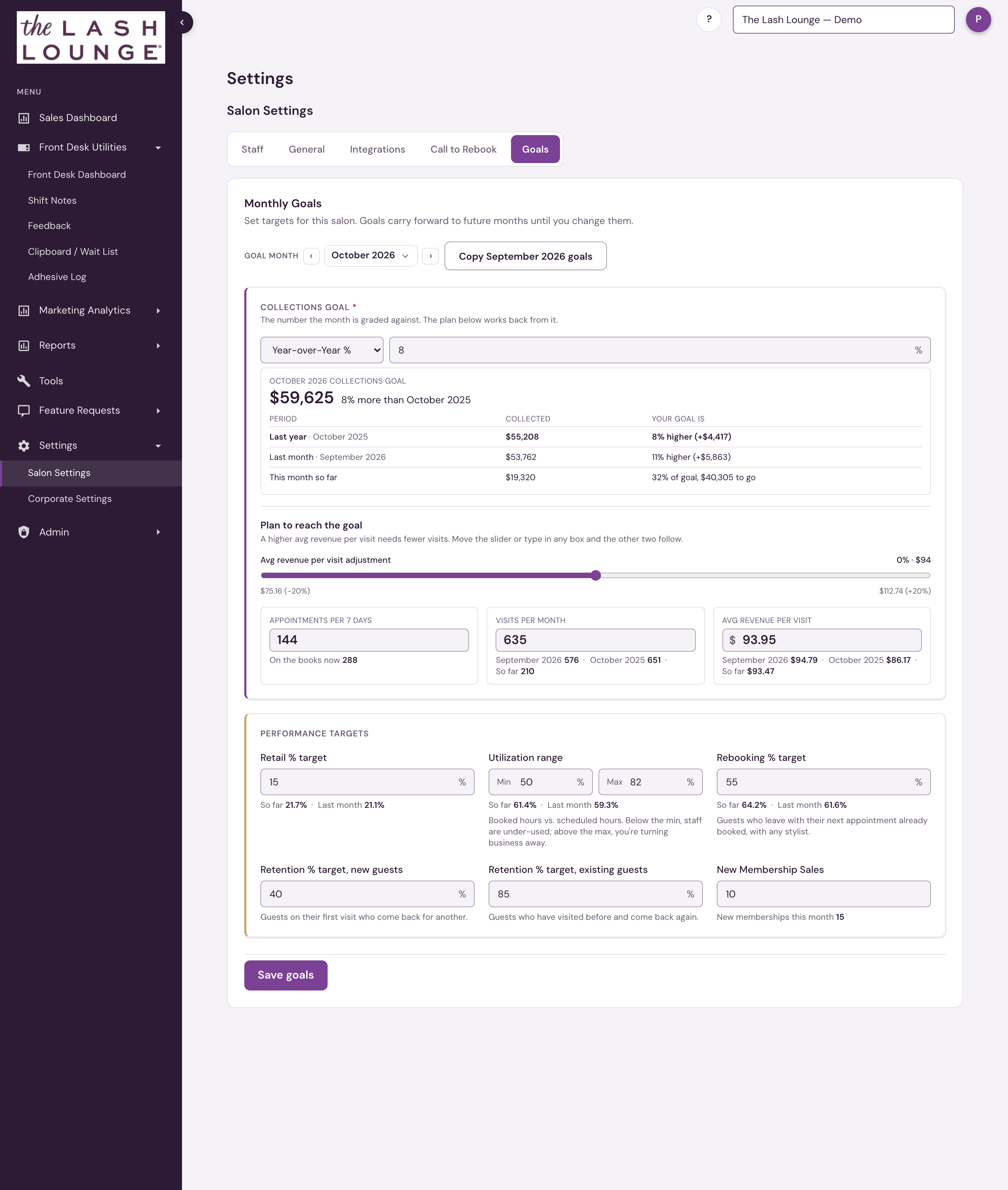
The goal month
Goals are set per month, using the month picker at the top right. The picker isn't limited to the current month — you can move it forward or back to any month.
- Set months ahead of time — choose any future month and save targets for it directly, so you can lay out the rest of the year one month at a time. Each month stores its own targets, and editing a later month never changes an earlier one.
- Look back at what you set — step the picker back with its arrows, or click the month name for a grid, to see the targets that were in effect for a past month.
Two behaviors keep upkeep minimal:
- Carry forward — goals apply to every future month until you change them. If you're viewing a month whose goals came from an earlier month, a Carried forward badge appears beside the picker. The badge is also how you tell which months are actually set: a month with its own saved targets shows no badge.
- Copy [month]'s goals — one click fills the form with the previous month's targets so you can tweak rather than retype. The button names the month it copies from, relative to the month you're editing: viewing July 2026, it reads Copy June 2026 goals. Copied values aren't saved until you press Save goals.
Set goals for the rest of the year
You can lay out every remaining month of the year, and there are two ways to do it — you don't have to fill in each month by hand unless you want to.
One growth goal that covers every remaining month. A Year-over-Year % goal is stored as a percentage, not as a dollar figure, and every month it applies to is measured against that month's own same-month-last-year. So saving grow 8% once, in September, gives October, November, and December each a real, different dollar target of their own — your December target is built from last December, not from September's number. One save covers the rest of the year, and a seasonal month is judged against the same season last year rather than against a flat figure that ignores it.
A flat dollar amount behaves the opposite way when it carries: the same dollar figure repeats month after month, so a slow month and your busiest month get the identical target. If you carry a goal forward, carry a percentage.
Month-by-month, when the year isn't uniform. If you want a different target for each month — a bigger push in your strong months, an easier number in a slow one — set them explicitly:
- Move the month picker to the next month you want to set.
- Click Copy [month]'s goals to pull the previous month's targets into the form.
- Adjust anything that should differ, then Save goals.
- Repeat for each remaining month.
Months you set explicitly show no Carried forward badge, so the badge doubles as your progress check: step through the months and any one still showing the badge hasn't been set for itself yet.
Mixing the two is fine. Set one Year-over-Year % goal as the baseline for the year, then override just the months that need their own number — the override applies from that month forward until the next month you've set.
Review how a past month finished
Setting a target for a month means that month is graded against it afterwards, and both review surfaces grade each month against the goal that was in effect for that month — including one that carried forward:
- One month at a time — on the Sales Dashboard, switch Compare to Goals and move the month picker back. The same tiles show how that month ended, with pace language dropped since a finished month has no pace left to run. See Reviewing a month that has finished. The picker only moves backwards; a month that hasn't happened yet has nothing to grade.
- Several months side by side — the Goals Report Card puts one row per month against its targets, and marks any month whose targets came from an earlier month as Carried forward.
Grading is worked out from your current targets each time you look, rather than being stamped onto the month when it closes. Saving targets onto a month that has already finished therefore changes what that month is judged against on both surfaces — and, through carry-forward, what every later month without targets of its own is judged against too. It's the right tool for fixing a target you entered wrong; it isn't a place to record what you would have aimed for.
The targets
The form is grouped into two sections: the collections goal with the plan to reach it (appointments, visits and average sale), and the performance targets behind it.
| Target | What it measures | Valid entry |
|---|---|---|
| Collections goal * | The money you aim to take in for the month. Required: goals cannot be saved without it. Choose Flat amount (a dollar figure), Month-over-Month %, or Year-over-Year % (grow collections X% over last month / the same month last year). | Flat: $0–$10,000,000 · Growth: −100 to 500 (%) |
| Appointments per 7 days | Appointments you aim to have on the books for any rolling 7-day window — forward-looking bookings. An add-on booked onto an appointment, such as a stylist upgrade, is part of that appointment, not one of its own. | 0 or more |
| Visits per month | Completed-service visits you aim to record across the whole calendar month — backward-looking production. A visit is what Total Visits counts, not each appointment booked: multiple services for the same guest, stylist and day count as one visit, while retail-only activity does not count. Distinct from the 7-day target: you can hit your booking target every week and still miss the month on cancellations. | 0 or more |
| Avg revenue per visit | Target average sale per visit. | $0 or more |
| Revenue per stylist hour | Target shop revenue per stylist clocked hour, graded against Revenue / Stylist Hour in the Avg Revenue per Visit tile. Bishops shops only (see the note below). The rate is not prorated. | $0 or more |
| Retail % target | Retail sales for every $100 of service sales (retail ÷ service), the same Retail % the Sales Dashboard shows. | 0–100 (percent points — enter 12.5 for 12.5%) |
| Utilization range | Booked hours vs. scheduled hours — the one target that is a range, not a floor. Enter a Min and a Max: below the min your stylists are under-used; above the max there's no availability left, so you're turning business away. Either box can be left blank (a min alone works exactly like a single target; a max alone grades only the ceiling). Can exceed 100 when stylists serve clients beyond their scheduled shifts. | Min 0–150, Max 0–150, Max ≥ Min (percent points — e.g. 50 and 82) |
| Rebooking % target | Guests who leave with their next appointment booked. | 0–100 (percent points) |
| Retention % target, new guests | Guests on their first visit who come back, graded against the New guests figure of the salon-wide Retention % on the Retention card. Frenchies counts retention its own way (see the note below). | 0–100 (percent points) |
| Retention % target, existing guests | Guests who had visited before and come back again, graded against the Existing guests figure on the same card. Expect to set this one well above the new-guest target. | 0–100 (percent points) |
| New Membership Sales | Memberships you aim to sell this month, graded against new members (a member who had a membership end in the last 12 months doesn't count). Not shown at Bishops. | 0 or more |
The monthly goal amount at the top of the page, Collections goal, is required and marked with an asterisk (*). Goals cannot be saved without it. Leave any other field blank to set no goal for that number — the dashboard simply won't grade it.
Bishops doesn't sell memberships, so there's no New Membership Sales goal. Instead, Bishops shops get a Revenue per stylist hour goal: the services and retail the shop sold, before tax, divided by stylists' clocked hours. It's graded on the Sales Dashboard, in the End-of-Day Owner Summary email, and on the Goals Report Card, where it takes the place of New Memberships.
Frenchies studios see the volume goals in ticket wording — tickets per month and average ticket — where other systems say visits and avg revenue per visit. The 7-day target is still appointments. Both Retention % goals are graded on the Frenchies rule: guests with a visit in the month four months back who came back within 90 days (future bookings don't count).
Work backwards from a collections goal
The goal in dollars
A percentage goal is shown in dollars as soon as you type it. Directly under the goal, the page states the dollar target for the month and the percentage in words, for example "$38,867 · 28% more than October 2025".
Under that, a short table sets the goal beside what was actually collected, one row per period:
| Period | Collected | Your goal is |
|---|---|---|
| Last year · October 2025 | $30,365 | 28% higher (+$8,502) |
| Last month · September 2026 | $37,991 | 2% higher (+$876) |
| This month so far | $13,911 | 36% of goal, $24,956 to go |
- The month the goal is based on comes first and is in bold: last year for a Year-over-Year % goal, last month for a Month-over-Month % goal.
- A Flat amount has no month it is based on, so the table lists last year, then last month, with neither in bold.
- A goal below a month's collections reads as lower, for example "13% lower (−$5,740)".
- This month so far appears when the goal month is the current month.
- For any other goal month the rows are named Year before and Month before. When the month before has not finished, the row is the Last finished month.
Before a goal is typed, the table lists the collected figures on their own.
The plan to reach it
Under the goal, Plan to reach the goal holds three linked targets, each in its own box: appointments per 7 days, visits per month (tickets per month at Frenchies) and avg revenue per visit (average ticket at Frenchies). These boxes are the targets that are saved. Each one appears once on the page.
The goal stays fixed and the other two boxes follow the one you change:
- Type an average ticket and the tickets and appointments needed recalculate.
- Type tickets per month and the average ticket needed recalculates.
- Type appointments per 7 days and the tickets and average ticket follow.
For example, with a flat $80,000 goal, an average ticket of $100 needs 800 tickets a month.
There is no separate apply step, and nothing is saved until Save goals. Opening the page changes nothing and saved targets are shown as saved. Values move only when you change the goal, the slider or a box. A box that has no target yet is drawn with a dashed outline and shows the plan's figure in grey italics, with the note "Suggested. Not set yet." and a Use button (for example Use 940). A suggestion is not saved. Press Use on any box to turn all three suggestions into targets, or type in a box, move the slider or change the goal. A non-number, zero or negative entry is flagged under the box.
Before a goal is entered the three boxes are still there, so the targets can be typed in by hand.
Choose where the growth comes from
A goal can be reached with more tickets, a higher average ticket, or some of each. The slider chooses the mix: as ticket rises, the tickets needed fall; as ticket falls, they rise.
Every plan starts from today's average ticket. That is your average over the 30 completed days ending yesterday. The slider sits in the center on it and runs from 20% below to 20% above, with the dollar figure at each end. The tickets needed are what it takes to reach the goal at that ticket. Changing the goal (its type, percentage or amount) starts the plan again from that ticket: the slider returns to the center and all three boxes are rewritten. A box you edit afterwards is kept until the goal next changes.
What the plan has to reach depends on the goal type:
- A Flat amount has to reach the dollars you entered.
- A Year-over-Year % or Month-over-Month % goal takes its comparison month's own tickets multiplied by its average ticket, and grows that by the goal percentage. If September had 720 visits at $94.63, a 5% Month-over-Month goal has to reach $71,540 from visits; at a $99.37 average over the last 30 days, that is 720 visits.
Collections include money that does not come through a visit, such as membership payments and gift cards, so visits multiplied by average ticket can come to less than the month's collections. When it does, the plan says so ("Visits brought in $68,134 of the $73,653 collected in September 2026, and the plan covers that share of the goal.").
A typed average ticket outside the slider's range leaves the slider at its end, with the label showing the real figures. Moving the slider replaces typed values. Recommended tickets always round up so the plan covers the goal.
Compare with last month and last year
Under the visits and average ticket boxes, the page lists what each has actually been: the month before the goal month, the same month last year and this month so far, each named with its figure (for example "September 2026 $94.63 · October 2025 $88.33 · So far $109.02"). A month with no figure is left out.
Notes under the plan
When the plan asks for less than you already do, a highlighted note under the boxes, "This plan asks for less than the salon already does", lists each figure that is below today's: a goal below what the month before collected (for example "The goal is 13% below what September 2026 collected ($43,815)."), an average ticket below the last 30 days, or a volume below the last 30 days. It is a prompt to look again, and nothing stops you saving the plan as it is.
The appointments per 7 days figure is the monthly target spread evenly across the month, so it does not allow for cancellations or no-shows. Treat it as a pace, not a booking quota.
What it compares against
The goal type decides the dollar target and what the plan has to reach. Every plan starts from the last 30 days' average ticket.
| Collections goal type | Dollar target comes from | The plan has to reach |
|---|---|---|
| Flat amount | The entered dollars | The entered dollars |
| Month-over-Month % | The completed calendar month immediately before the goal month | That month's tickets multiplied by its average ticket, grown by the percentage |
| Year-over-Year % | The same calendar month last year | That month's tickets multiplied by its average ticket, grown by the percentage |
If a percentage goal's comparison month has not finished yet (a Month-over-Month goal set for next month, for example), the page says when the goal can be put in dollars: "October 2026 isn't finished yet, so this goal can't be put in dollars until November 1." You can save the percentage now and the plan appears from that date, or plan today with a Year-over-Year % or flat goal. No other month is substituted. If the comparison month has collections but no average ticket or volume on record, the plan has to reach the dollar target itself.
The last 30 days always means exactly 30 completed local calendar days ending yesterday. Month-to-date activity is a reference beside the plan and never enters it.
The baseline and the recommendation are counted in completed tickets, and the volume target is shown as tickets. Goals you saved earlier still work.
The same 30-day window supplies the volume the plan is compared with, normalized to the goal month's length. With fewer than 20 visits in it, the page says to treat the plan as a rough guide. With no average ticket for those 30 days there is no plan, and the three targets can still be typed in by hand.
Set goals in context
You never have to guess what a reasonable target is: under each field, salon360 shows your real numbers. The collections goal has its comparison table. Visits per month and average ticket each show the month before, the same month last year and this month so far, with the months named. The performance targets show last month and this month so far. The appointments per 7 days box shows what's currently on the books, and the memberships field shows new memberships so far this month.
Out-of-range entries are flagged under the field as you type. Save goals is always available. When a field needs attention, choosing Save goals shows the message under each such field and moves the page to the first one, and nothing is saved until they are corrected — so a typo can't become a target.
The Goals tab is available to salon admins (the Salon Admin permission) and to corporate and platform-admin users, same as the rest of Salon Settings.