Integrations
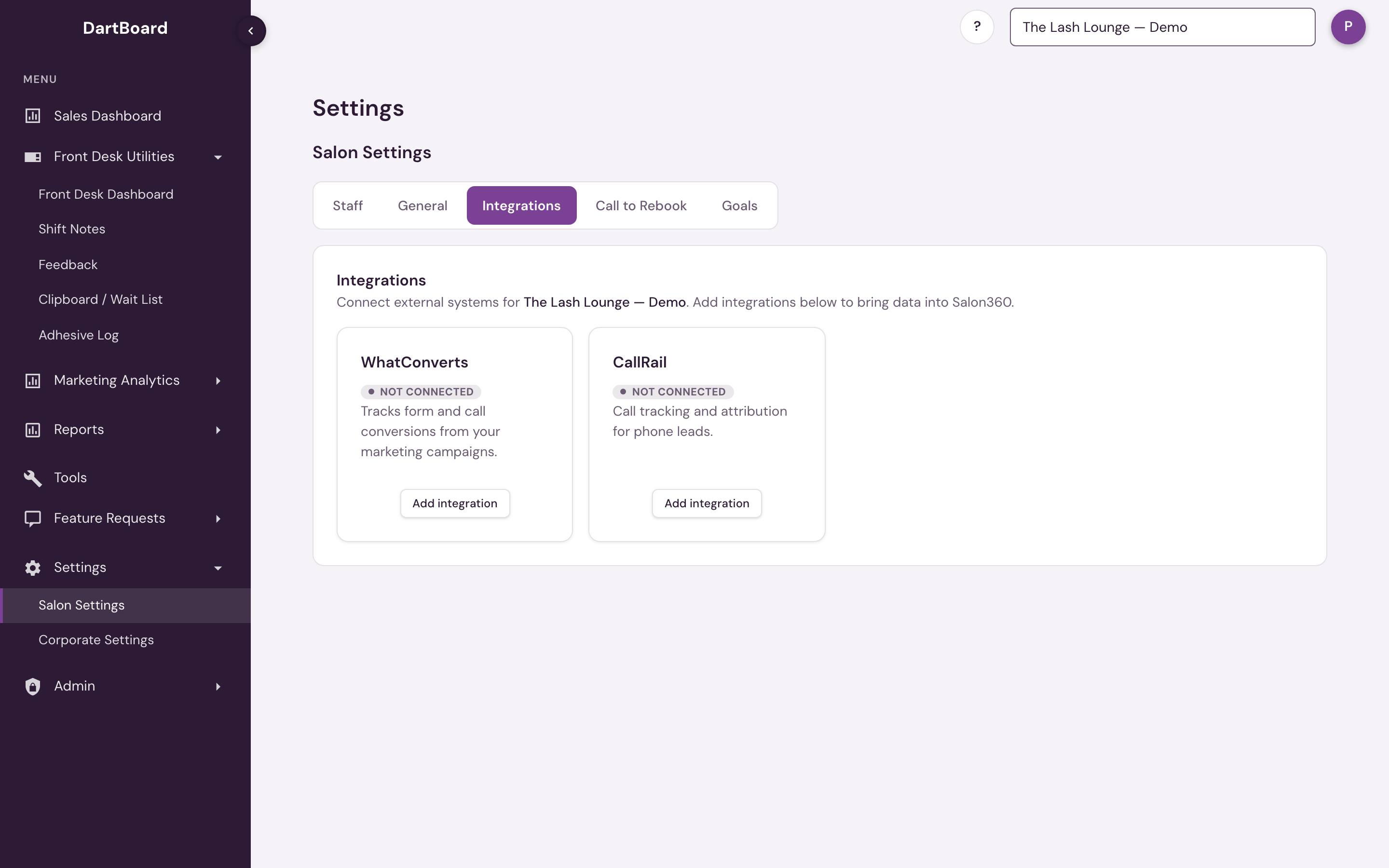
The Integrations page (Settings → Salon Settings → Integrations) is where a salon connects its own call- and form-tracking credentials, plus its email sender configuration.
Every integration carries a live status pill — Connected, Needs reauth, Error, or Not connected — instead of bare text, so a broken connection is visible the moment you open the page.
 12
WhatConverts
Enter the WhatConverts API Token and WhatConverts API Secret, the pair shown on the API Keys page in WhatConverts. The token is the shorter value and the secret is the longer one. They bring in the salon's phone calls. Both must be saved for the card to read as Connected. Disconnect removes both.
CallRail
Enter the CallRail API key and the CallRail account ID. The account ID is a number; it is not a company ID or a tracking number. Both must be saved for the card to read as Connected. Disconnect removes both.
Keys are tested when you save
Saving a WhatConverts or CallRail integration tries the keys against that service first. If the service does not accept them, nothing is saved and the message says what to check. For WhatConverts it also says when the API Token and API Secret are in each other's fields. If the service cannot be reached at that moment, the keys are saved as entered.
Saved keys stay hidden
A saved key or secret is never shown again, to anyone. Edit integration opens with the key fields empty and a line under each one that reads Connected, ending in and the key's last four characters, so you can tell which key is in place.
- To keep the key, leave its field blank. Save changes only the fields you typed in.
- To replace the key, type the new one and Save.
- To remove the integration, use Disconnect. Saving a blank field never removes a key.
If a key is lost, copy it again from CallRail or WhatConverts and replace it here.
Meta Lead Ads is managed centrally in Corporate Settings → Integrations, not here.
QuickBooks Online
Shown for salons where Financials is enabled. Connect to QuickBooks opens Intuit's sign-in; sign in with the QuickBooks user for this salon and pick the company. You return to Financials and the first Profit & Loss pull starts right away — numbers appear within a minute. After that DART refreshes the P&L every morning.
The card shows the connected company name and the last sync time. Once connected:
- Update now pulls the P&L again immediately (useful after your bookkeeper posts a batch of entries). It can run once every few minutes.
- Disconnect revokes DART's access at Intuit and removes the stored connection. The P&L history already pulled stays in DART until you connect again.
- Needs reconnect appears if QuickBooks stops accepting the connection (for example after the QuickBooks password changes or the authorising user leaves the company). Press Reconnect to QuickBooks to restore it; nothing else needs to change.
One QuickBooks company connects to one salon. If your books hold several locations in one company, contact support before connecting.
Connecting, syncing, and disconnecting QuickBooks require Financials admin access or Salon admin access. See the Financials overview.
Email sender settings
The Integrations page is available to salon admins (the Salon Admin permission) and to corporate/platform-admin users.