Managing users
Salon admins (staff with the Salon admin access toggle) are responsible for keeping their salon's user list up to date — adding new staff as they're hired, adjusting access as roles change, and removing accounts for staff who've left.
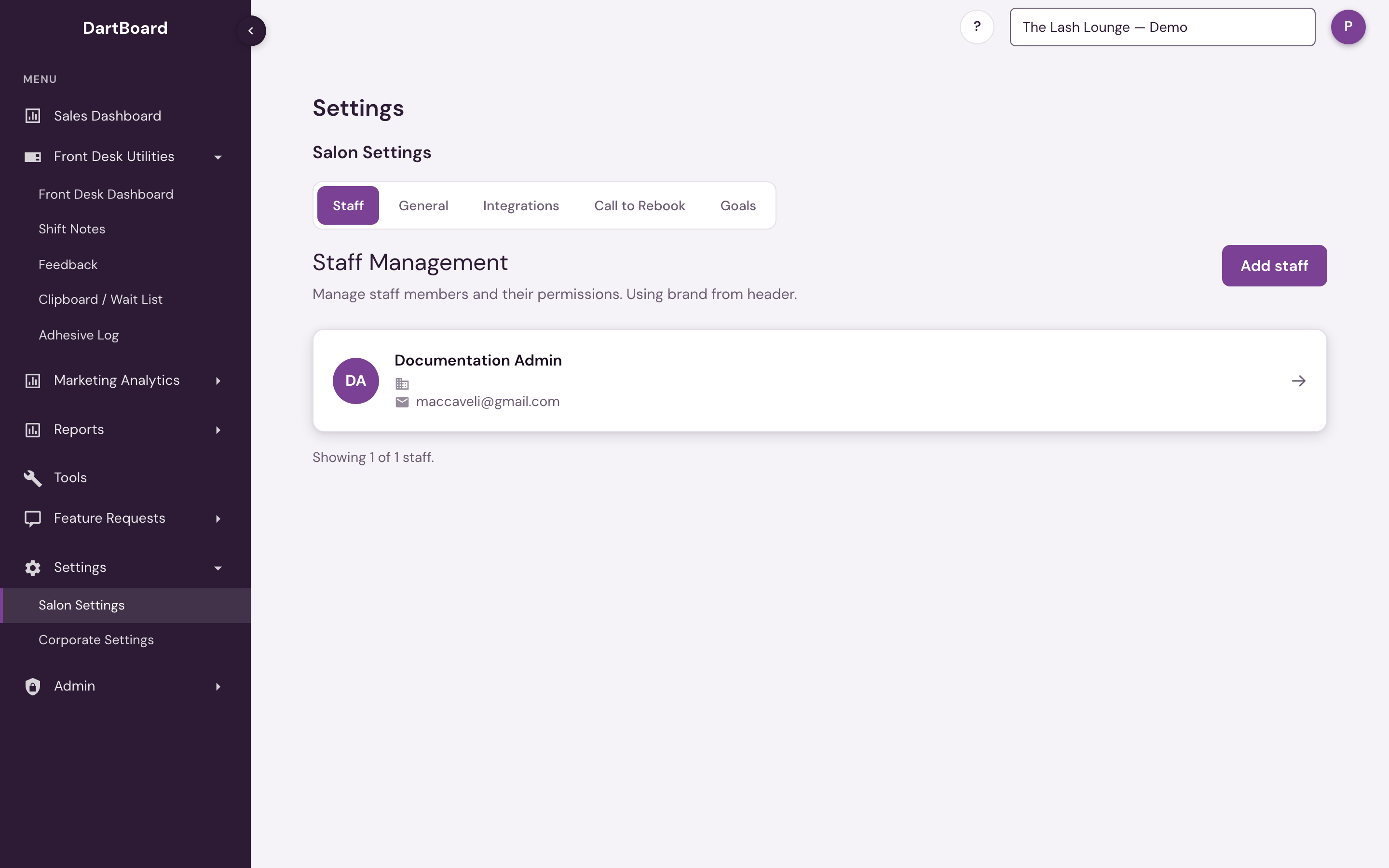
Finding it: Settings → Salon Settings → Staff.
 12
Adding a user
Click Add staff and pick the person from the list. The list offers the staff already set up in your point of sale system who don't have a salon360 login yet — you don't type in a new person here. The Name field is how the person appears everywhere in salon360; if it differs from their name in your point of sale system, that name is shown read-only underneath as Name in point of sale system, for reference — changing Name here never renames the person in your point of sale system. Confirm their job title, and salon360 starts the new account from a sensible permission bundle for that role (for example, Owner starts with everything on; Stylist starts with just the notification basics) — you can then adjust individual toggles before saving.
For a salon on Zenoti, someone who works here but is set up at another salon in the point of sale system is not in the list: Zenoti keeps each person at one home salon, so an owner with several salons, or a stylist who works at more than one, appears only under their home salon. Use Find someone by email above the list: enter their work email exactly as it is in the point of sale system and click Find. The match shows their name, job title and home salon; click Select and continue as usual. Someone who already has a salon360 login elsewhere is marked In the app at …; adding them here keeps that login, and this salon appears in their salon picker the next time they sign in. Each salon still gets its own permissions. If nothing comes back, the person is already in the app at this salon or their email in the point of sale system differs.
Corporate users see the whole franchise in the list instead, with a Home salon column and a search box, so they can add anyone to any salon without the email step.
- They need an email address on their point of sale profile. salon360 uses it to send the invite, so anyone without one is left out of the list. Add it in your point of sale system and they'll appear.
- They may already have a login. The list only offers people who don't have one yet — check the main Staff page.
- A marketing partner's email can't be used. If the email is a marketing partner's login, adding the person, or changing a staff member's email to it, stops with a message naming the partner. That login sees only Marketing Analytics for the partner's salons, and can't also be a staff login. Use a different email, or ask your corporate office.
- Former employees are left out on purpose. Someone marked as no longer employed in your point of sale system won't be offered here. That includes anyone whose profile still has an employment end date, even after a rehire: clear the end date in your point of sale system and they appear the next day.
Editing permissions
Every user has two groups of settings, both editable from their user record.
Access toggles — what the person can see and do once logged in:
| Toggle | Unlocks |
|---|---|
| Front desk access | The front desk tools (guest feedback, shift notes, daily summary). |
| Sales Dashboard access | The Sales Dashboard (sales, guest feedback stats, related reports). |
| Marketing dashboard access | The marketing dashboard. |
| Reporting portal access | The reporting portal and analytics tools (Tools). On its own this does not add Reports to the menu — see the note below. |
| Salon admin access | Manage staff and Salon Settings for this salon (add/edit staff, general settings). Reads Studio admin access at Frenchies and Shop admin access at Bishops. |
| Financials access | View the Financials section — QuickBooks Profit & Loss and break-even (at salons where Financials is enabled). |
| Financials admin access | Connect or disconnect QuickBooks and classify accounts as fixed or variable (includes Financials access). |
Reporting portal access is what puts Reports in someone's sidebar — including Salon Reports. It only works at a location that has Reports enabled in its Salon Settings, and it only opens Reports at the locations where you granted it. Salon admin access is not required.
Changes take effect the next time that person signs in — not while they're already signed in.
Notification toggles — what the person is texted or emailed about:
| Toggle | Sends |
|---|---|
| Feedback Notification (Text) | New guest feedback, if feedback notifications are enabled for the location. |
| Service Note Notification (Text) | SMS reminders when the person has appointments with missing service notes. The Lash Lounge only; shown when service notes are turned on for the salon. |
| Service Note Summary (Email) | The daily service notes audit report (missing notes by stylist). The Lash Lounge only; shown when service notes are turned on for the salon. |
| EOD Owners Summary (Email) | The nightly End of Day Owner Summary: where the month stands against your goals, today's and month-to-date sales, key performance numbers, what's booked ahead, membership pulse (not at Bishops, which also gets a Revenue / Stylist Hour row), items that need attention, and the shift log. |
| New Lead Notifications (Email) | An alert when a new lead comes in for the person's location. Sent from leads@salon360.ai ("Leads by DART"). Corporate can also send the same alerts to the salon's business email, in Salon Settings. |
If a staff member's role changes — say, they move from front desk to a management position — revisit their permissions at the same time. Access doesn't update automatically when a job title changes.
Removing a user
When someone leaves, open their user record and click Delete to remove their salon360 login and access. This is permanent and can't be undone — but it's low-risk to their history: appointments, sales, and service notes are all tied to the staff member in your point of sale system, not to this login, so deleting a user here doesn't touch any of that data.
Corporate and platform-admin users are managed the same way, but their broad cross-brand access comes from their role rather than from the toggles above.
Managing staff requires Salon admin access (or corporate/platform-admin access, which applies across every salon it covers).